How to submit CHAS claims
CHAS STATUS
Check a patient’s CHAS status
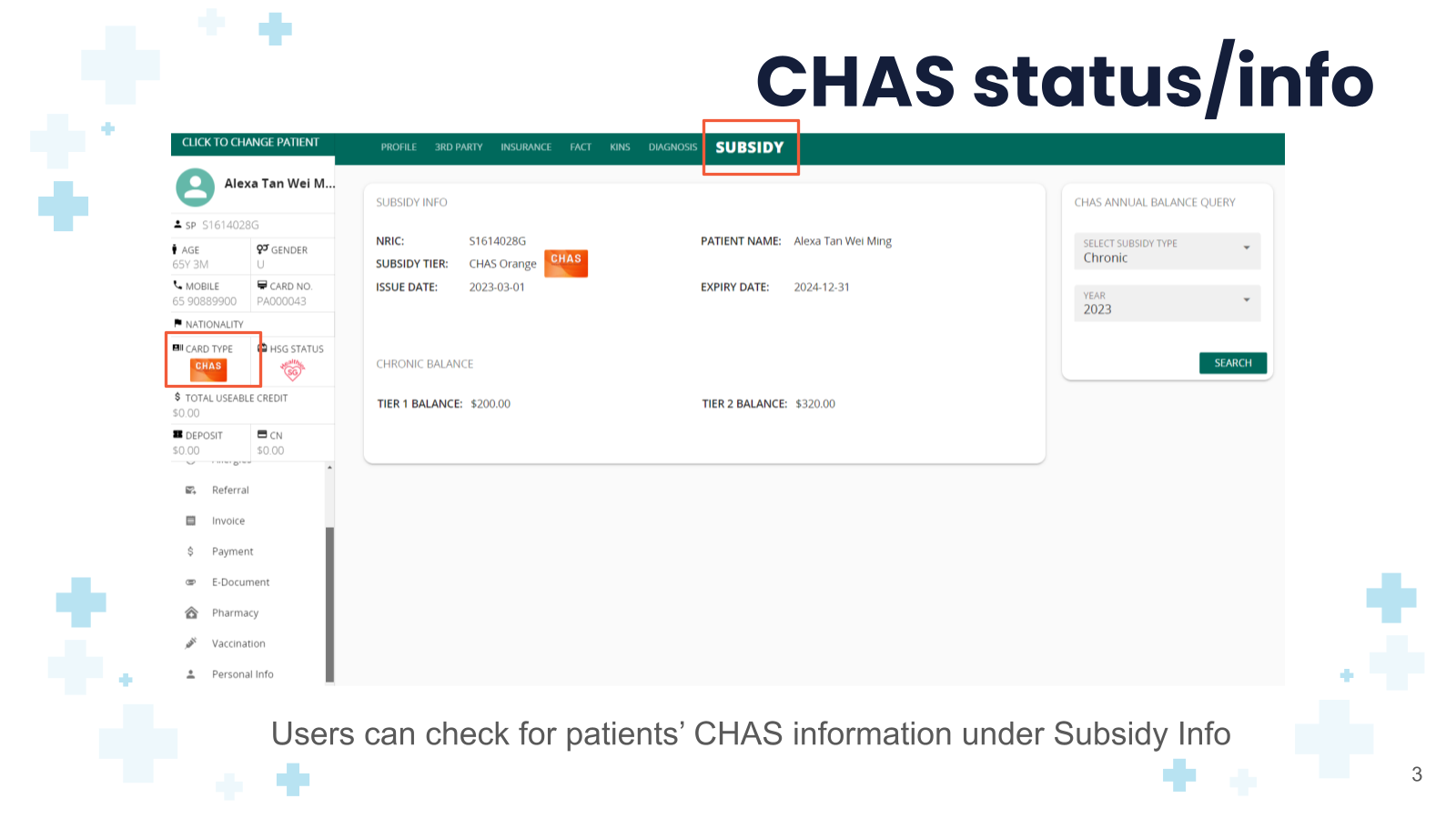
CHAS status/info
Users can check for patients’ CHAS information under Subsidy Info
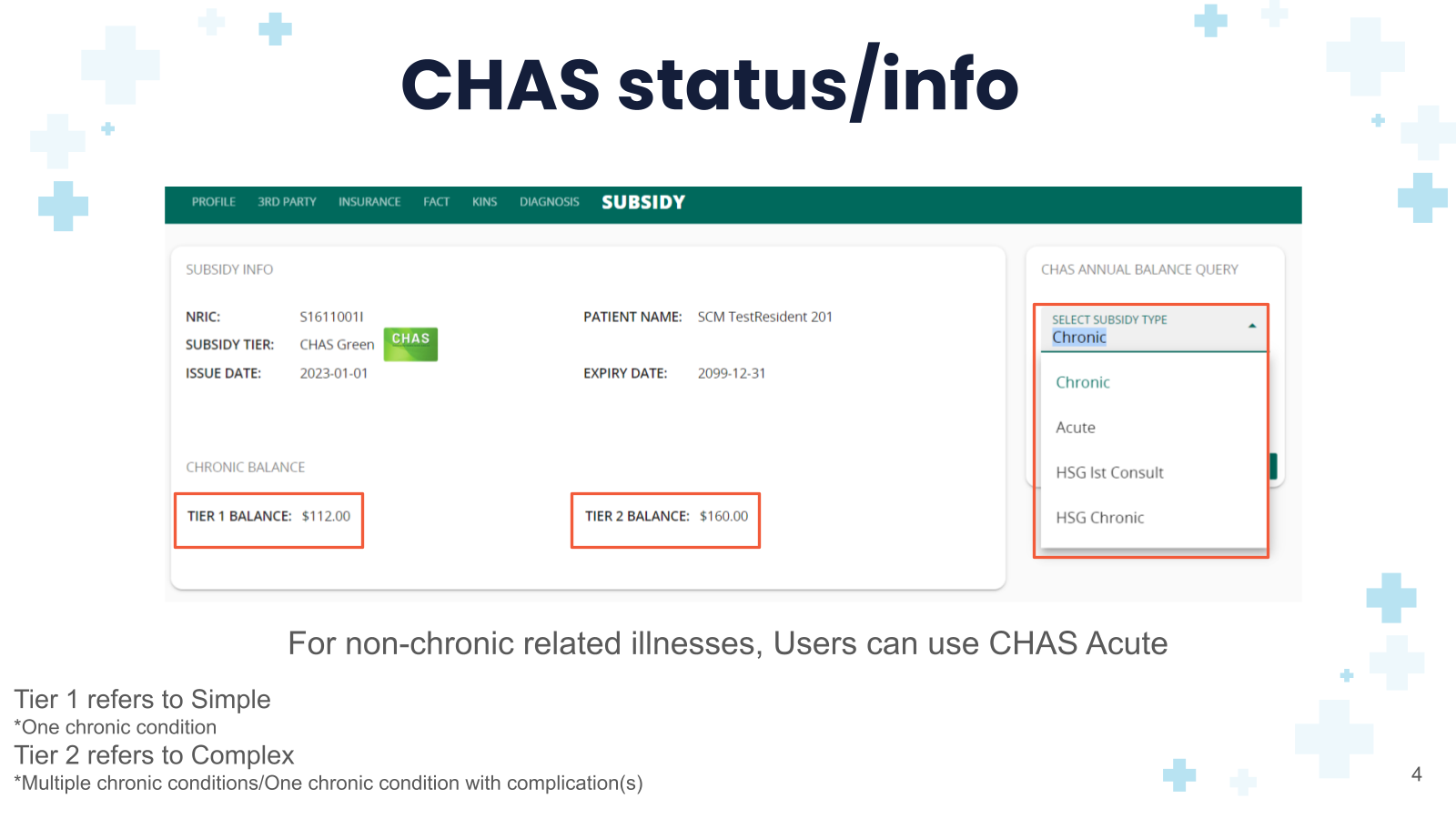
Tier 1 refers to Simple
*One chronic condition
Tier 2 refers to Complex
*Multiple chronic conditions/One chronic condition with complication(s)
For non-chronic related illnesses, Users can use CHAS Acute
CHAS
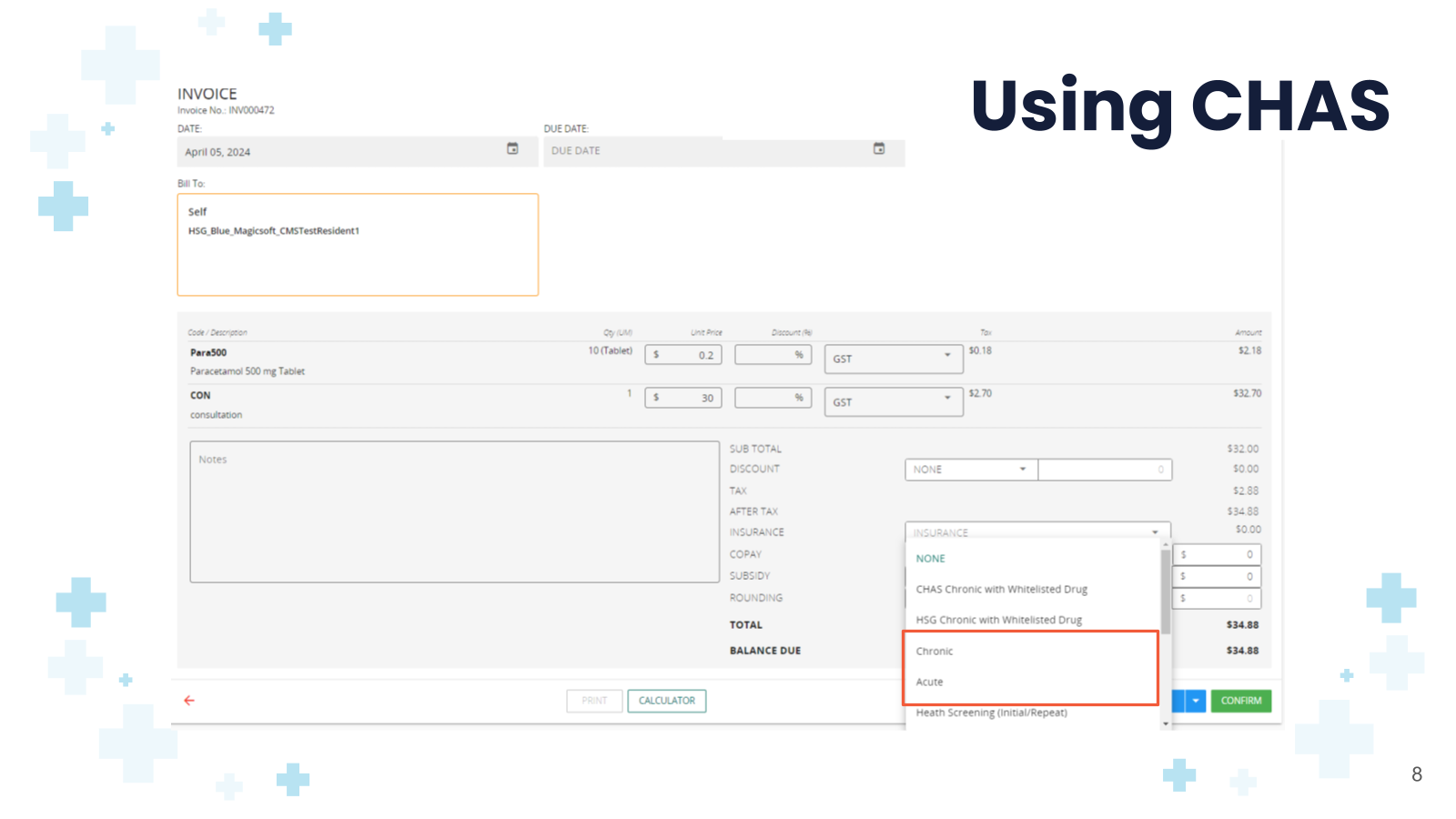
Use CHAS subsidies for medications
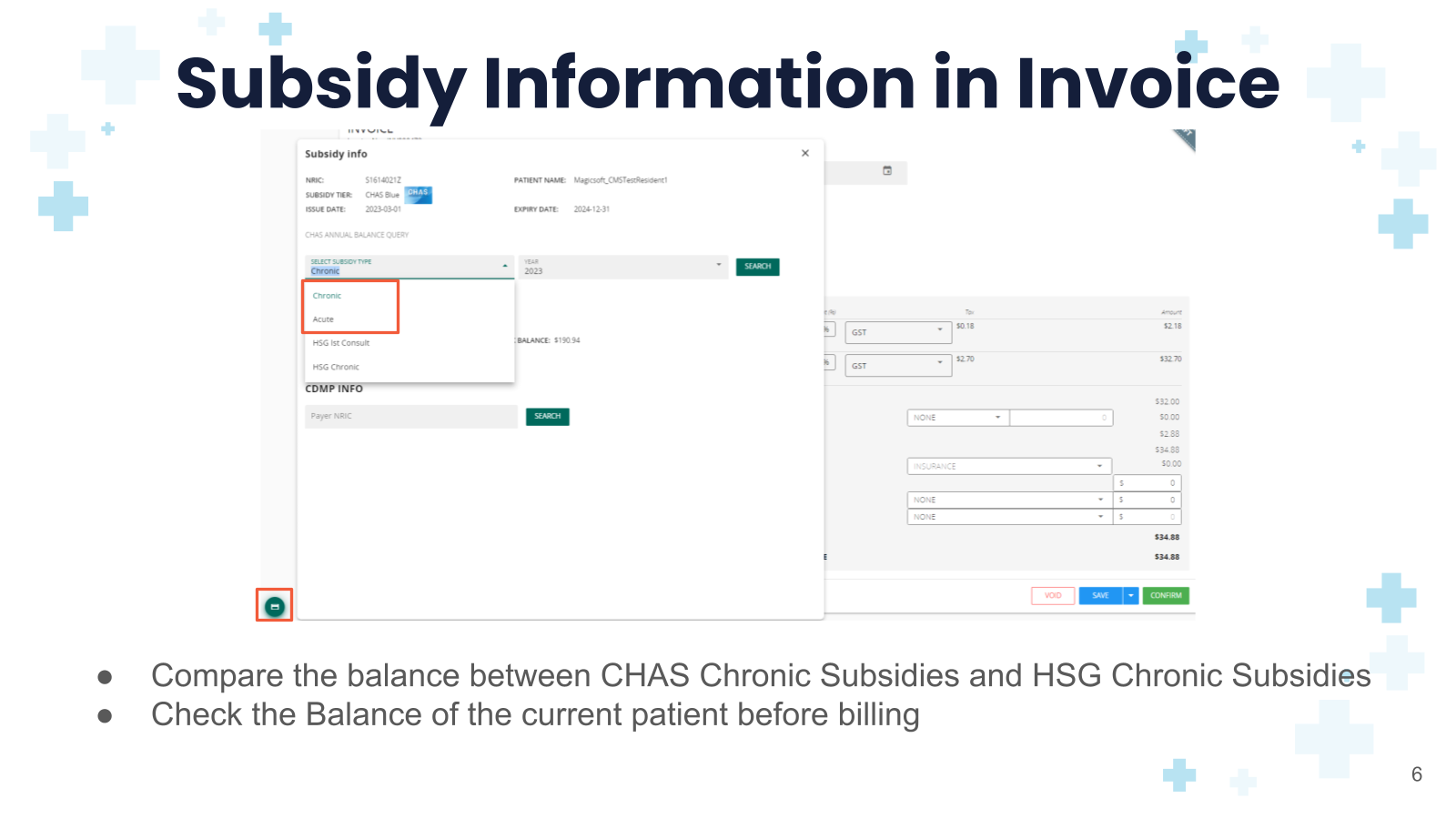
Subsidy Information in Invoice
Compare the balance between CHAS Chronic Subsidies and HSG Chronic Subsidies
Check the Balance of the current patient before billing
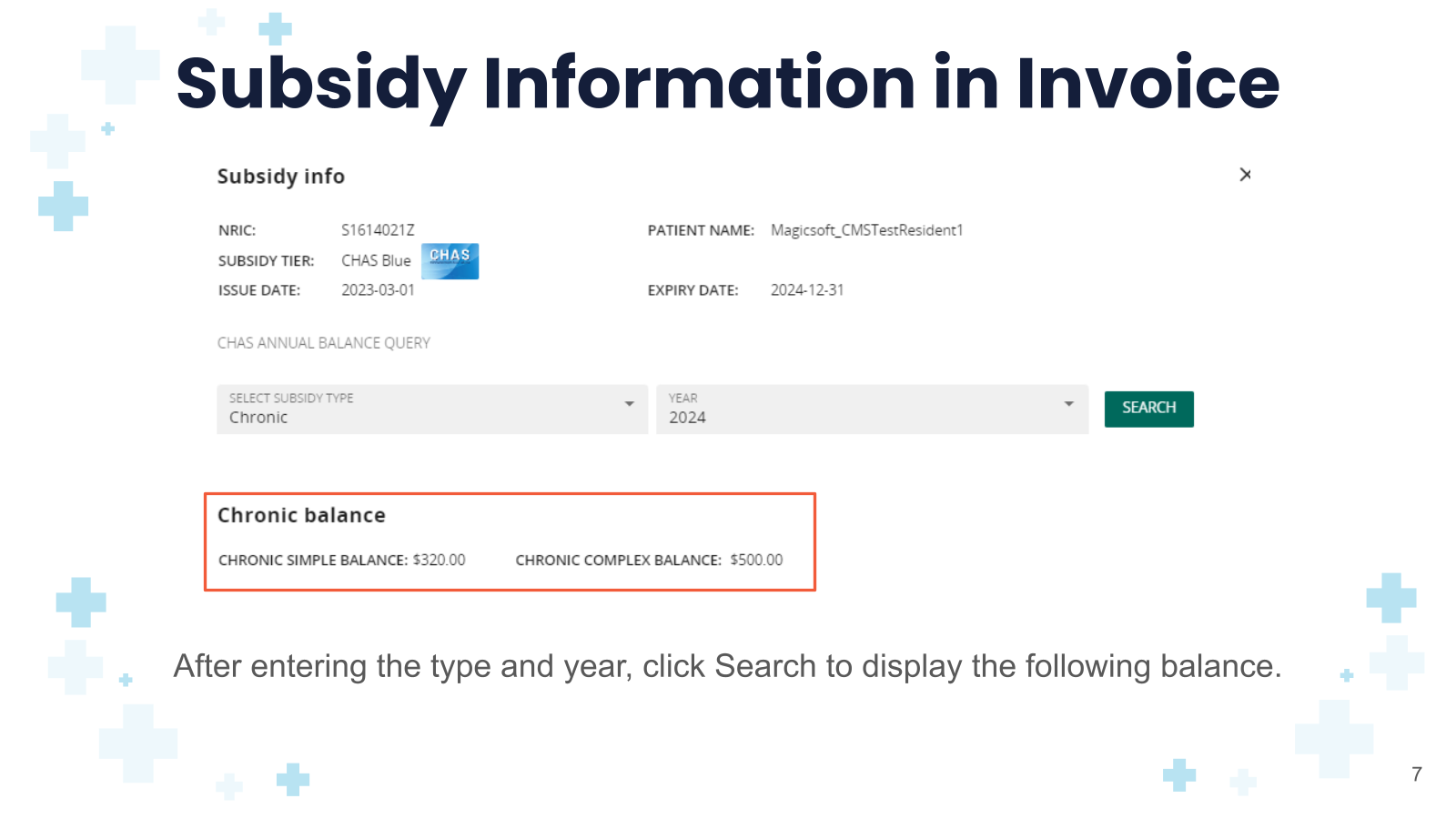
After entering the type and year, click Search to display the following balance.
Using CHAS
Input the amount subsidised from the invoice
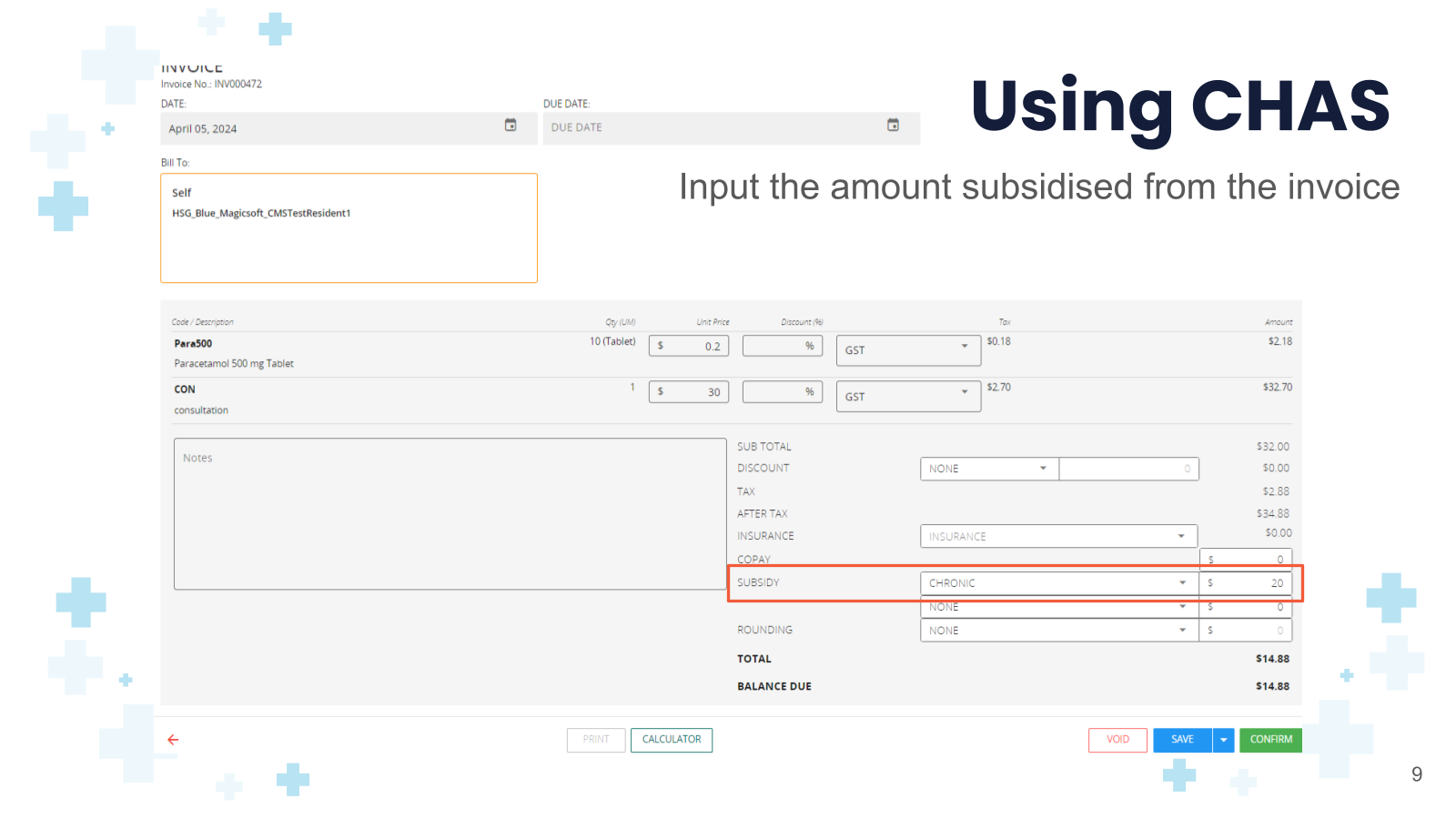
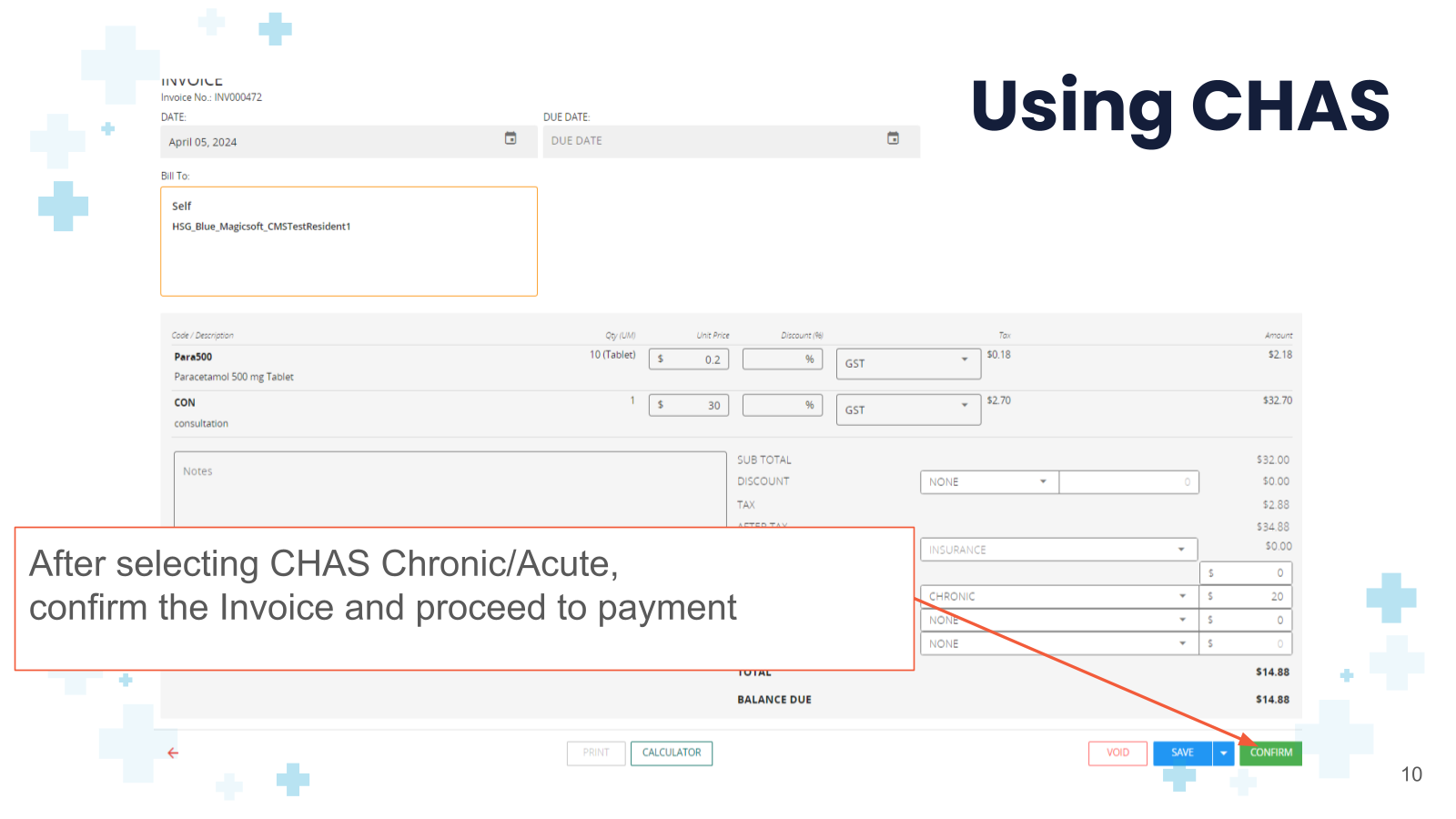
After selecting CHAS Chronic/Acute, confirm the Invoice and proceed to payment
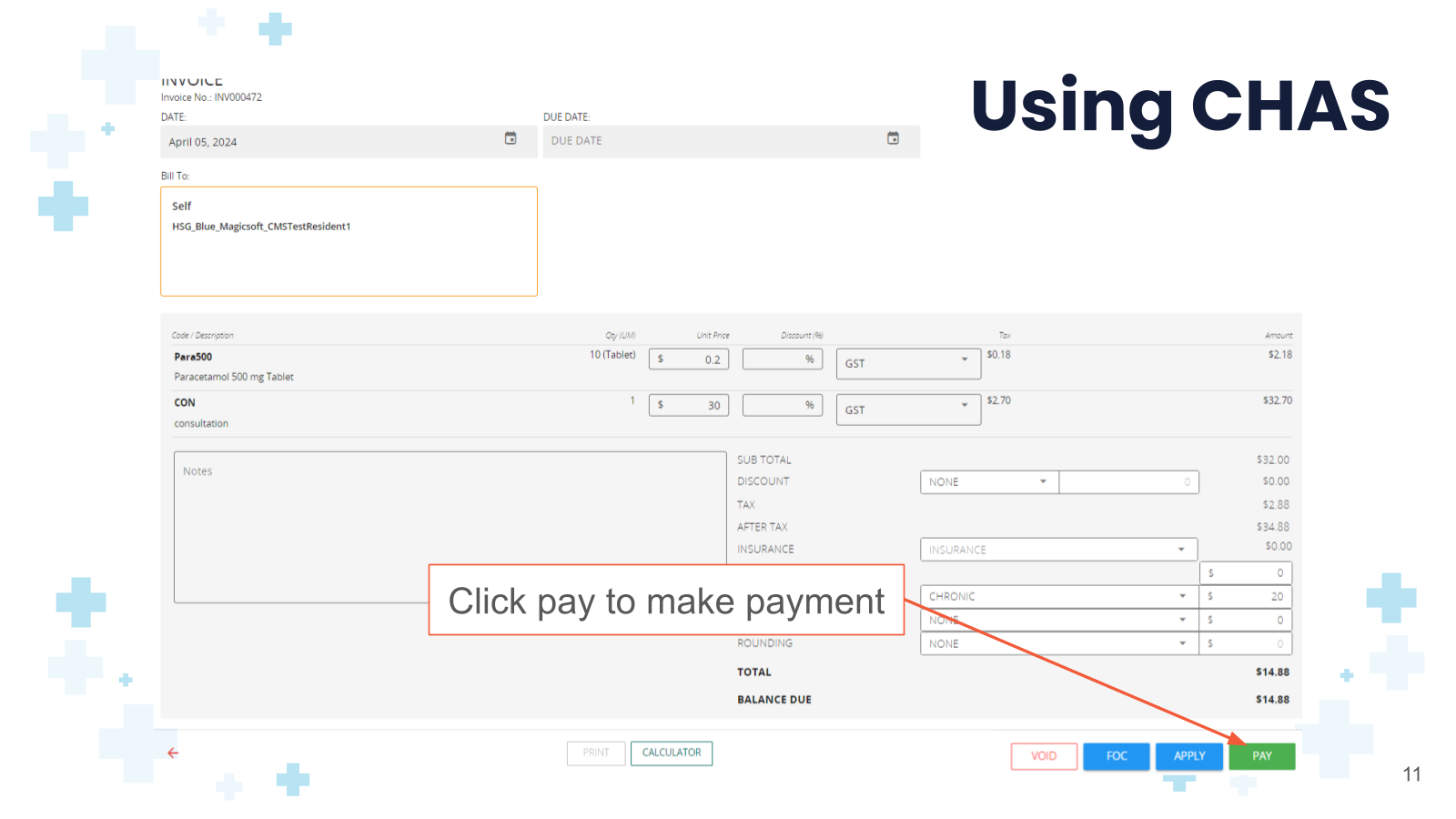
Click pay to make payment
CHAS SUBMISSION
Submit your CHAS claim
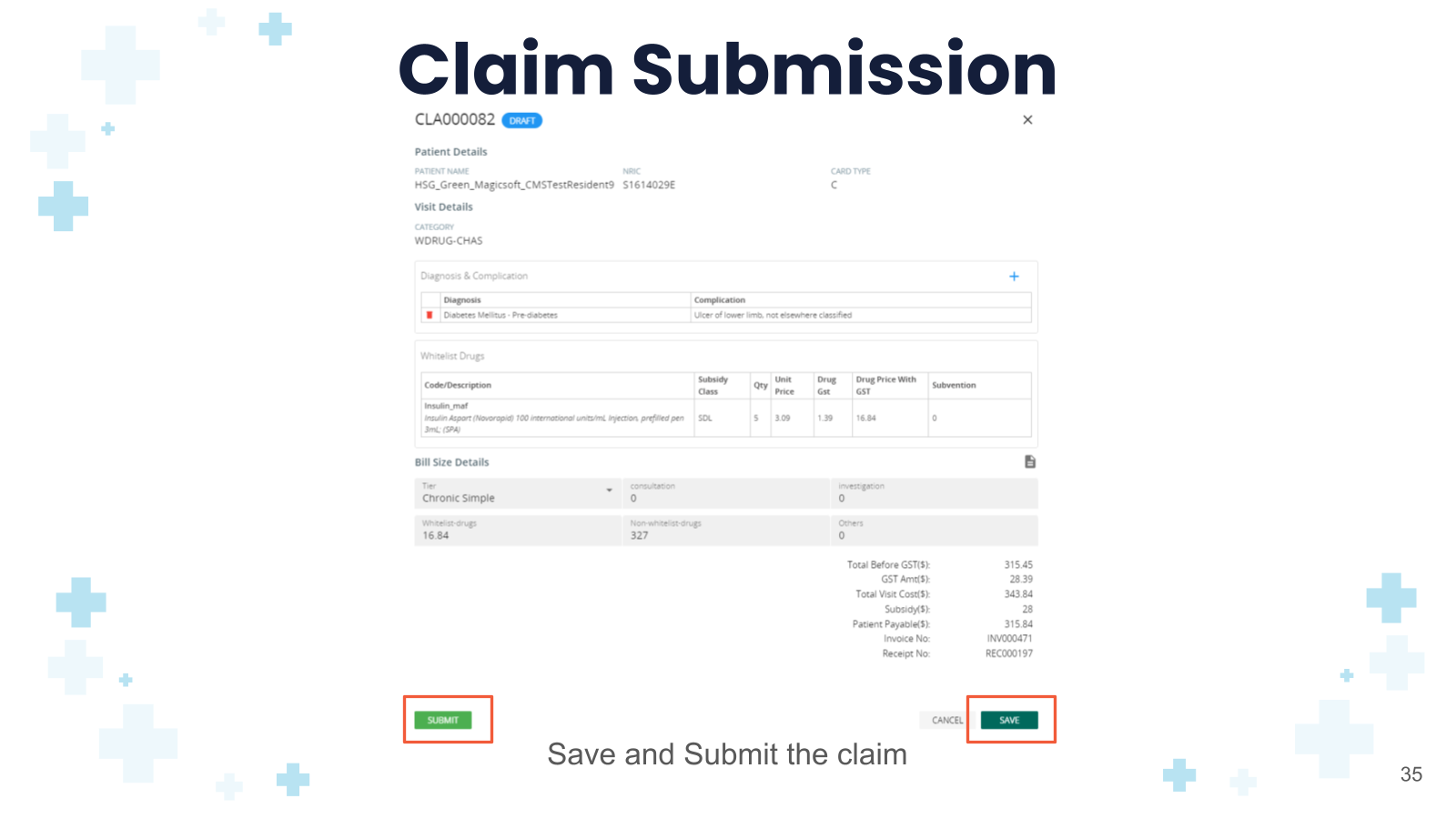
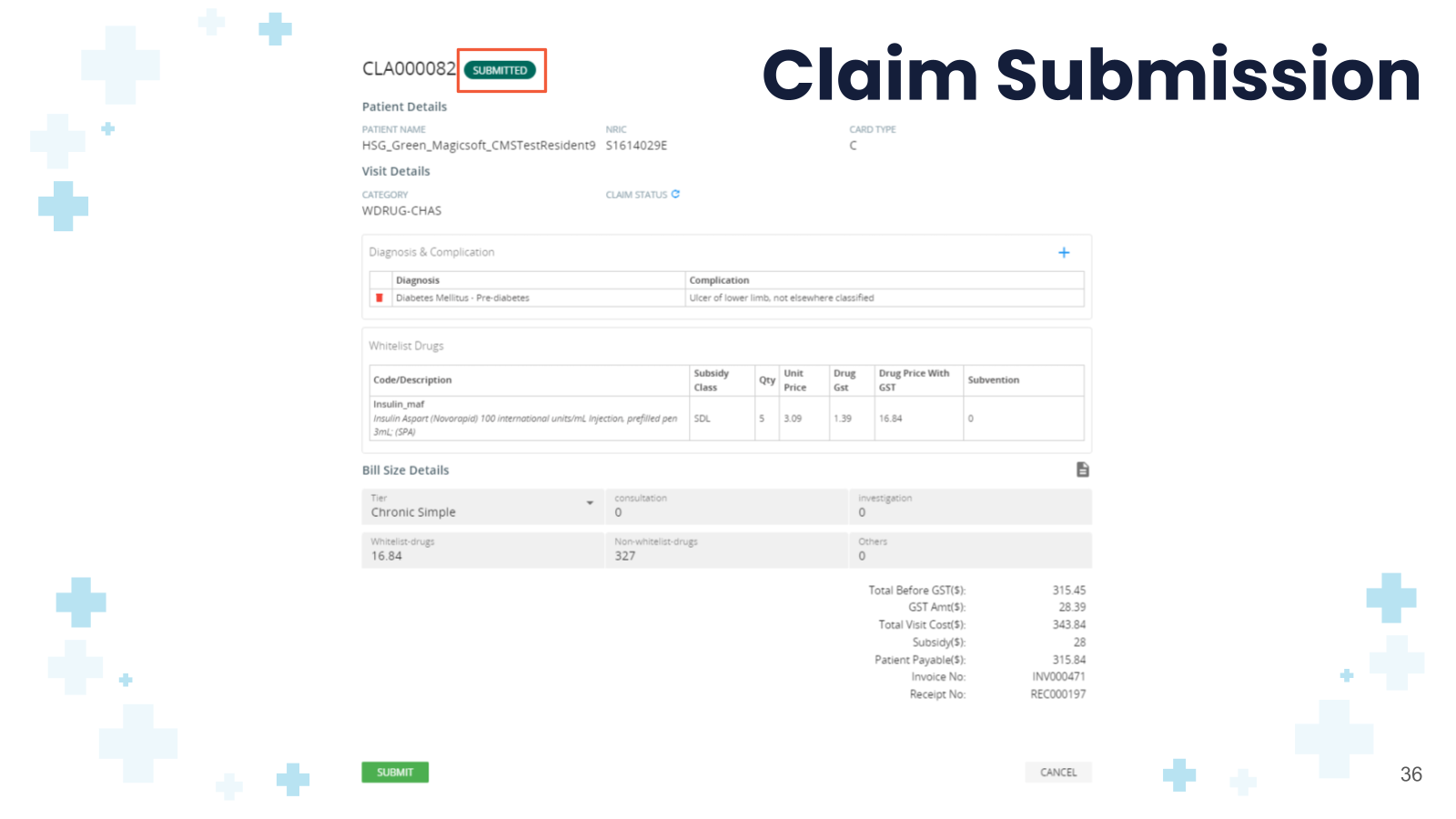
Claim Submission
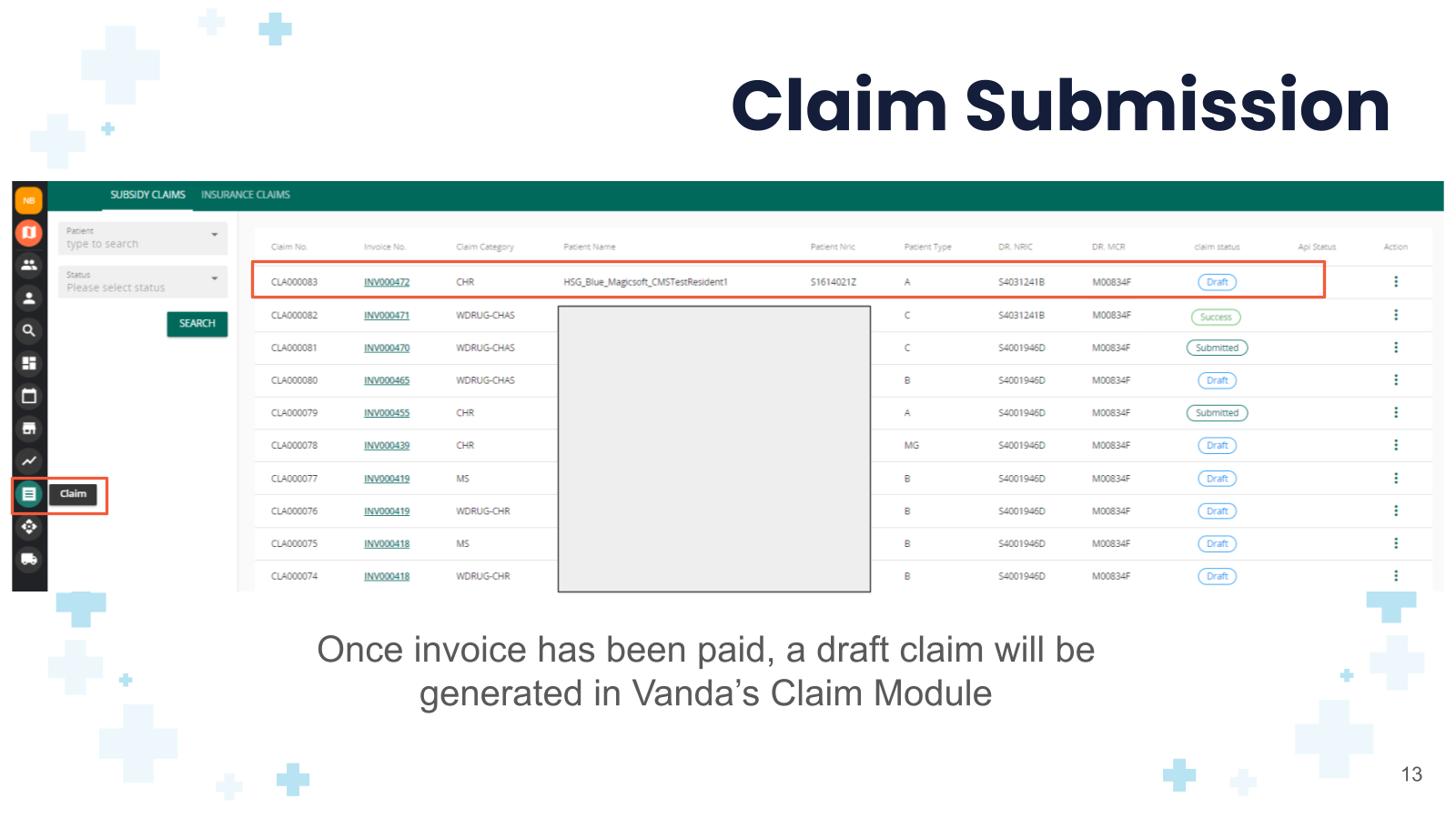
Once invoice has been paid, a draft claim will be generated in Vanda’s Claim Module
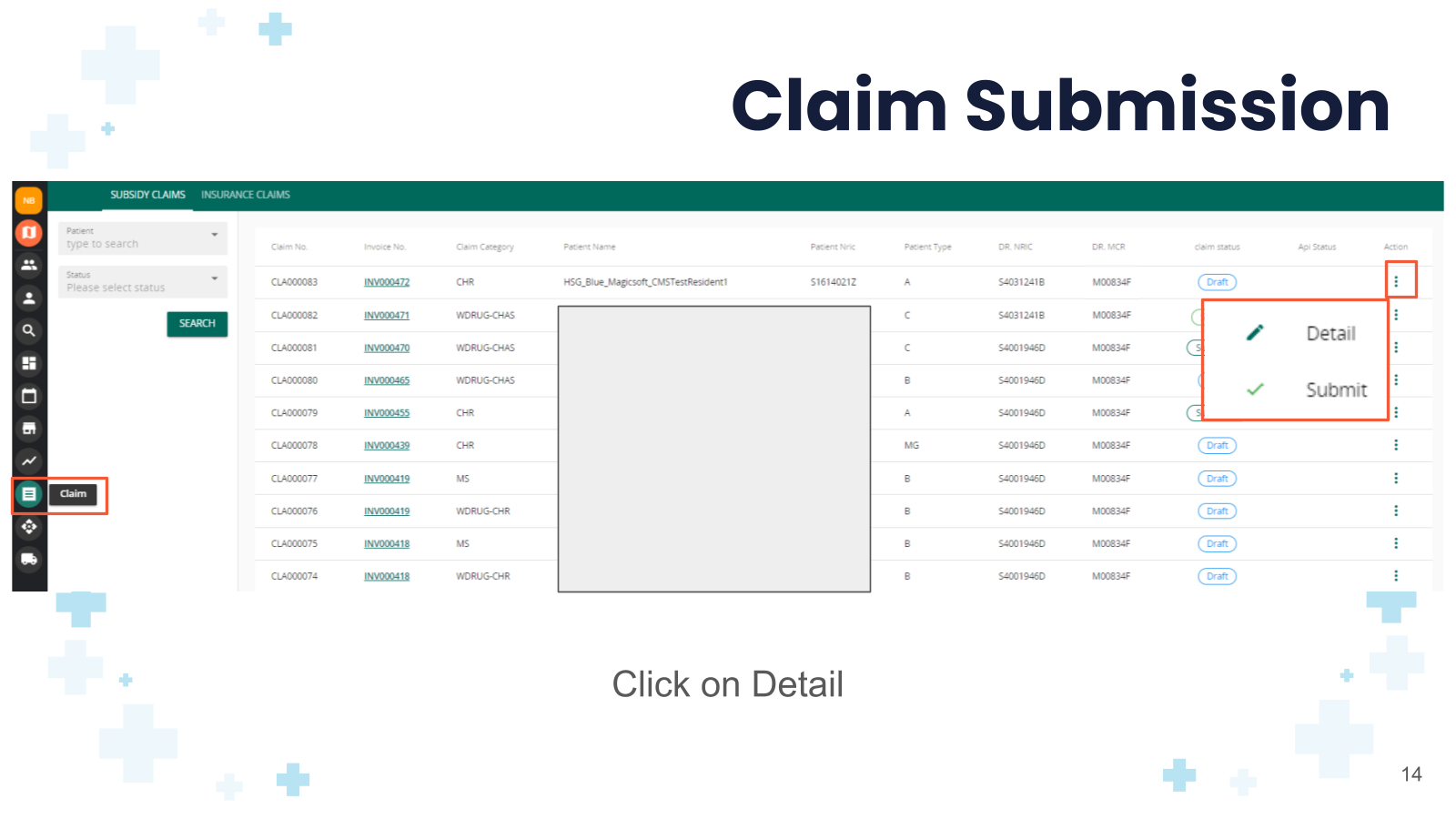
Click on Detail
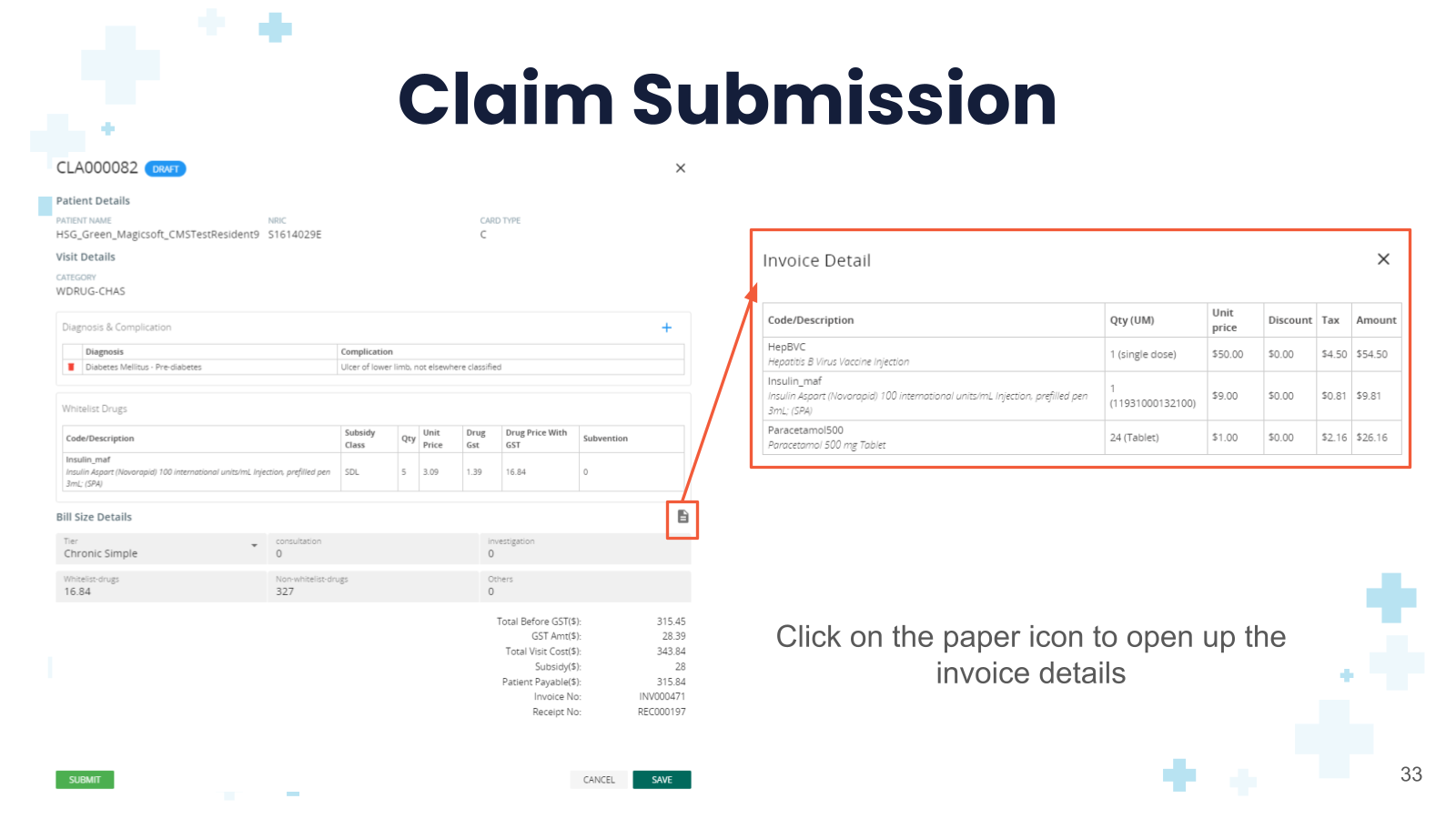
Click on the paper icon to view the Invoice details
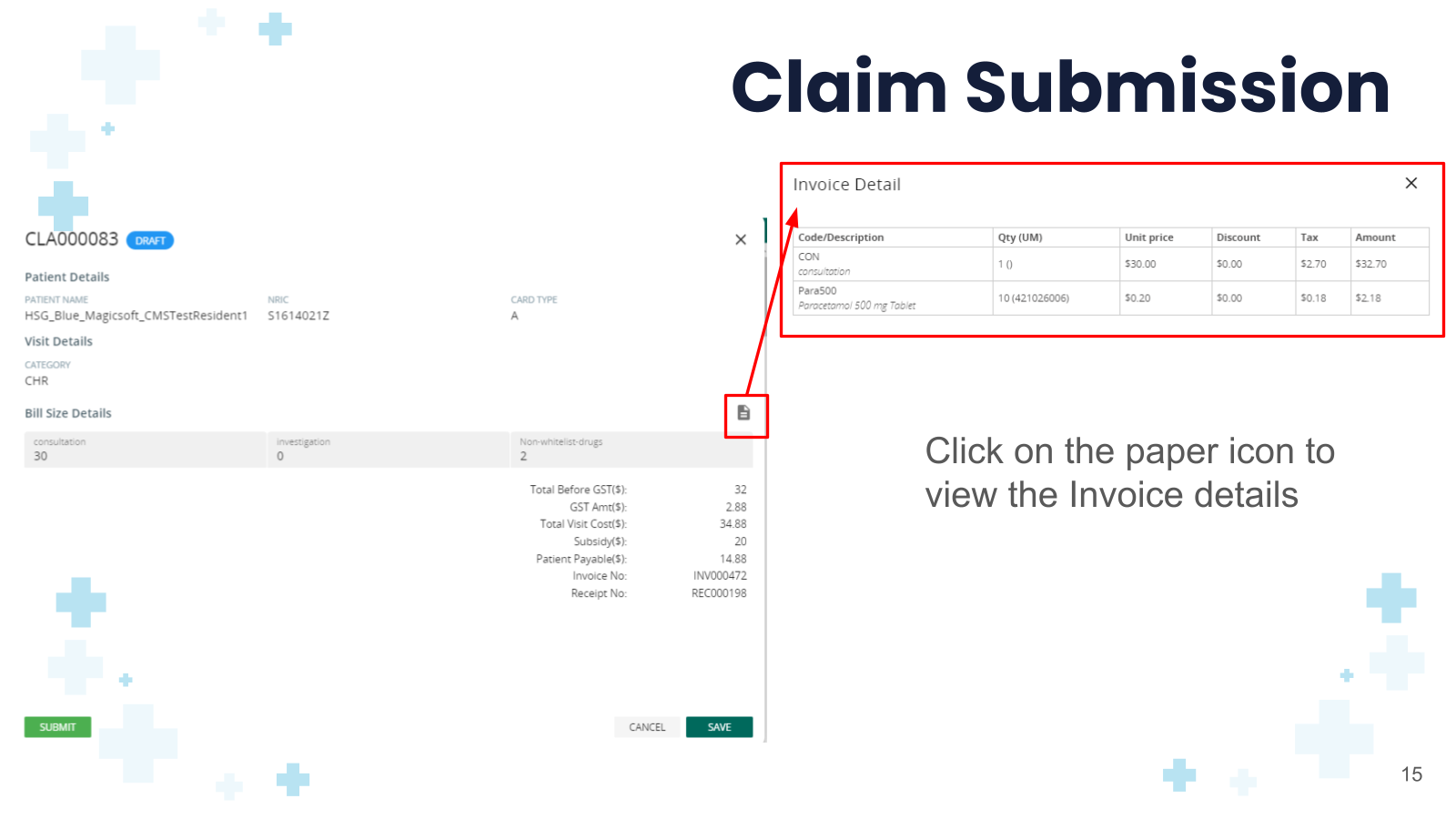
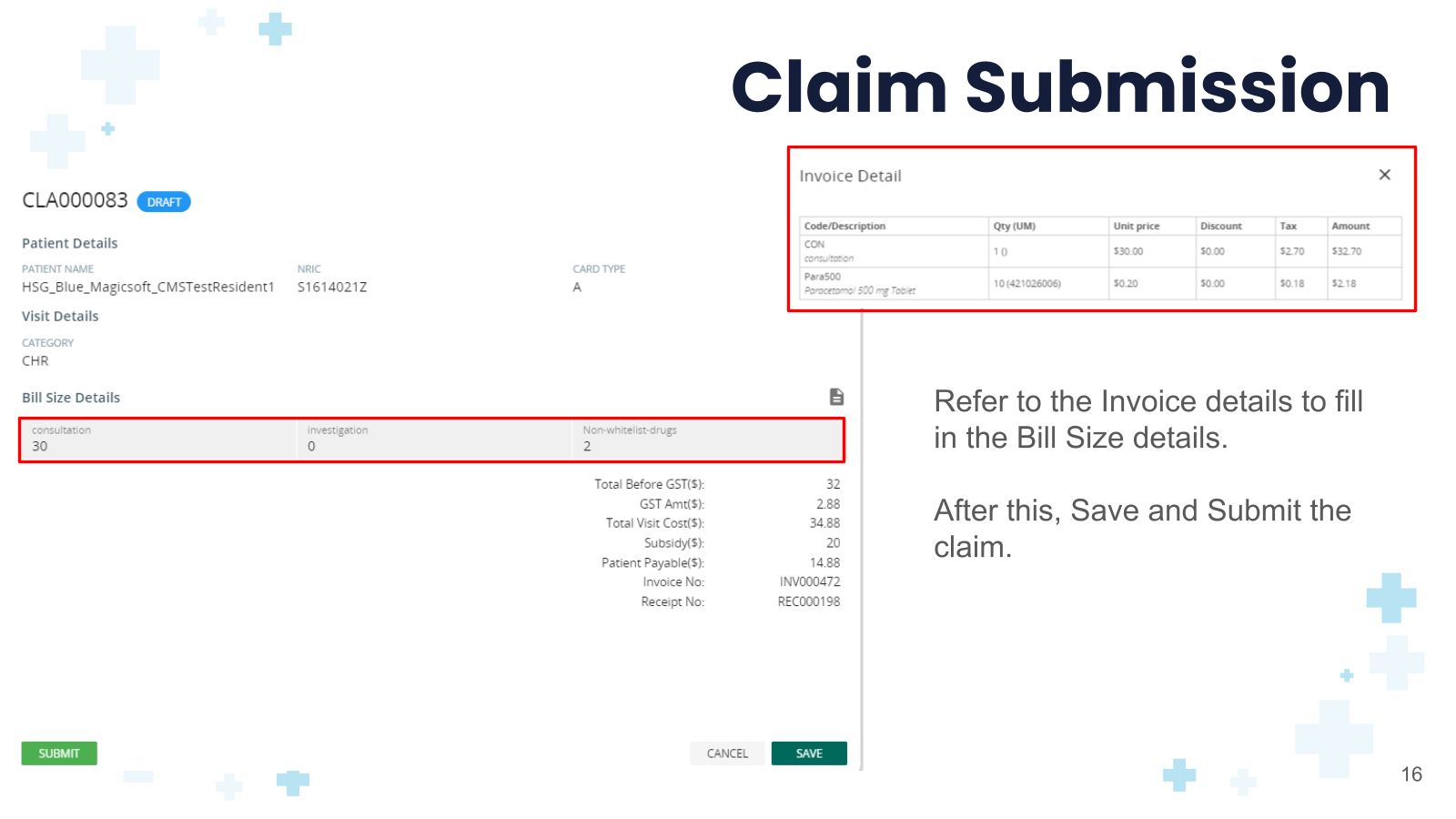
Refer to the Invoice details to fill in the Bill Size details.
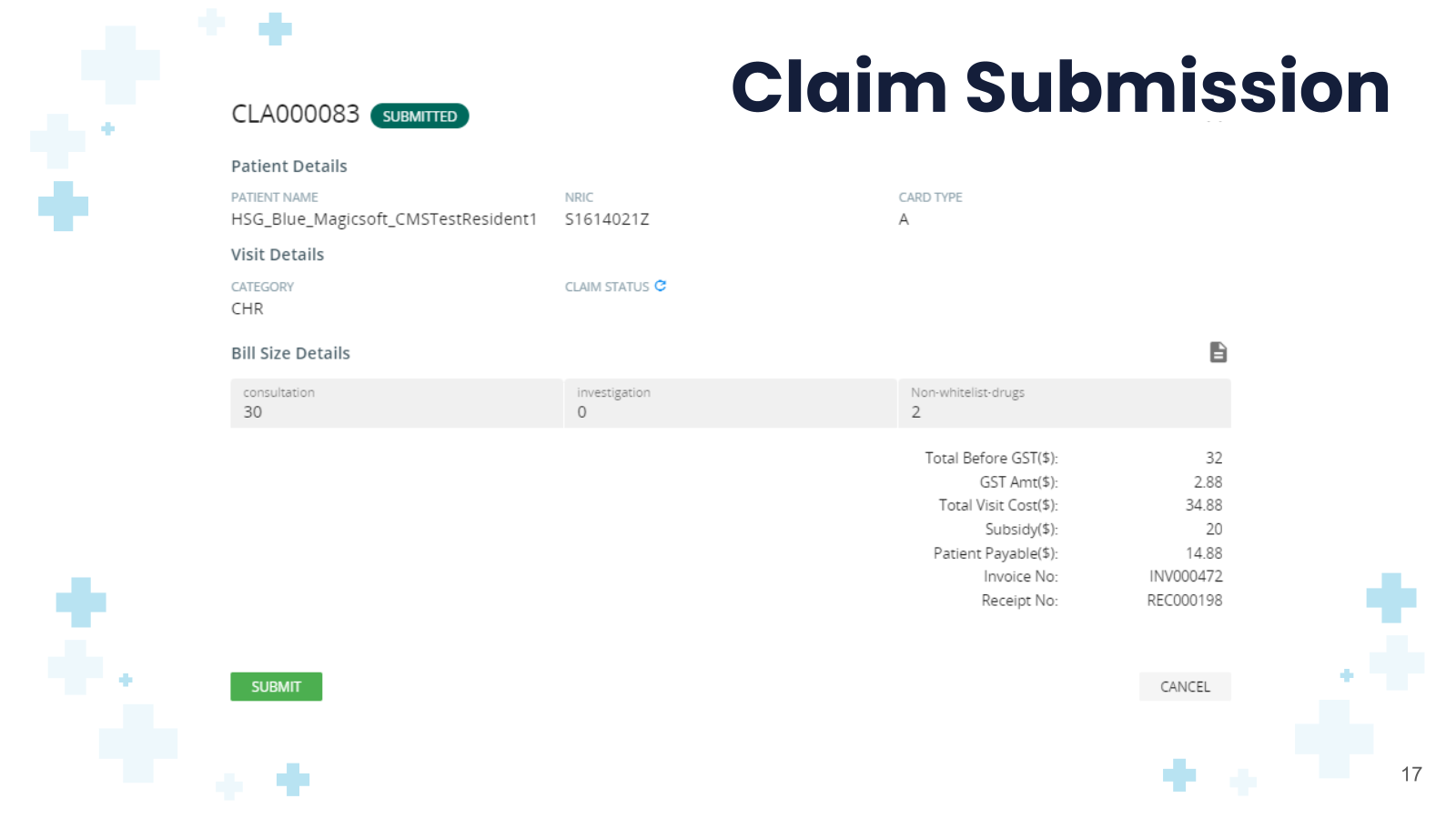
After this, Save and Submit the claim.
CHAS CHRONIC W/L DRUG SUBSIDY
Use CHAS subsidies for whitelisted medications
Whitelisted drugs
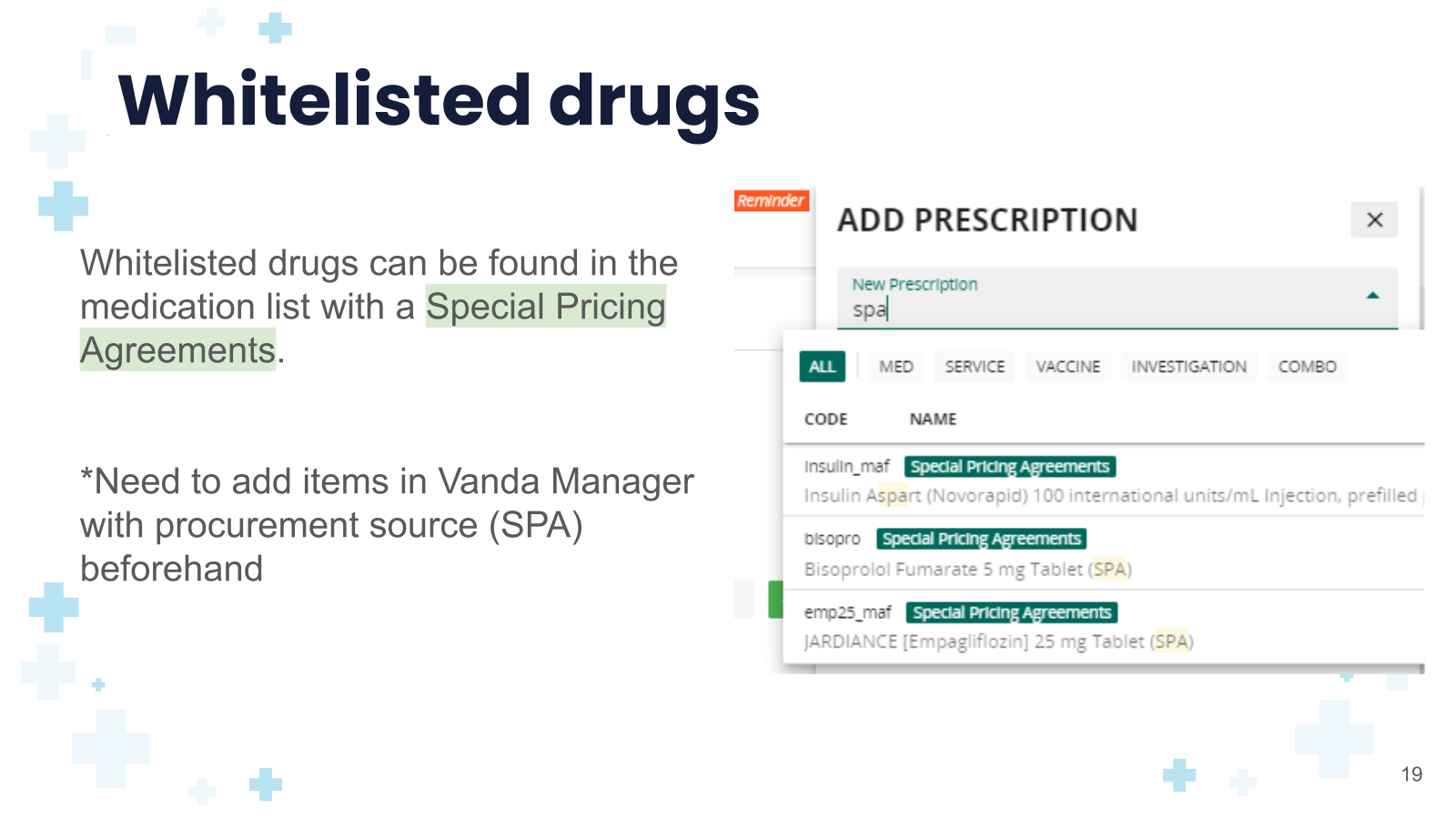
Whitelisted drugs can be found in the medication list with a Special Pricing Agreements.
*Need to add items in Vanda Manager with procurement source (SPA) beforehand
Using CHAS
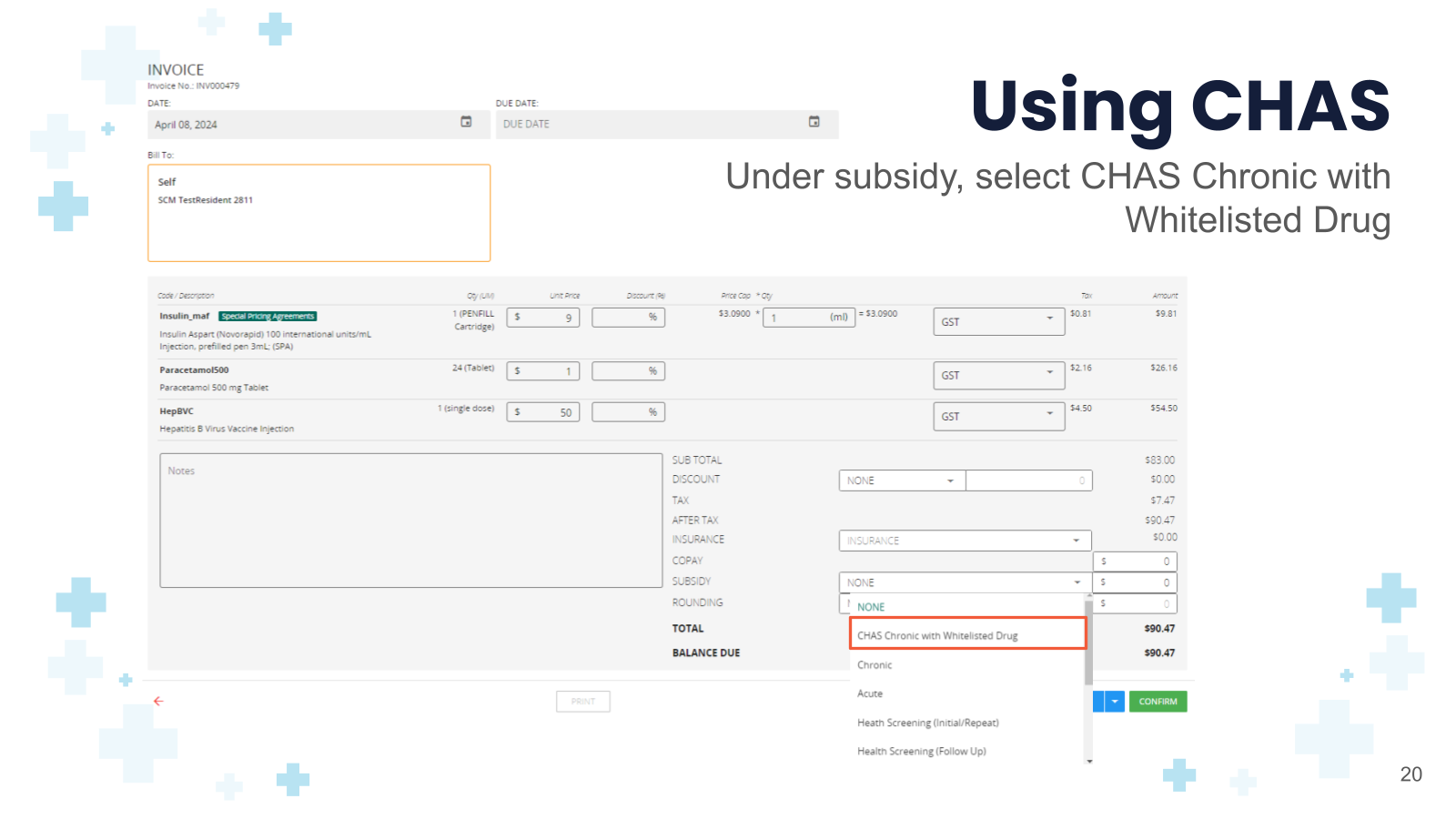
Under subsidy, select CHAS Chronic with Whitelisted Drug
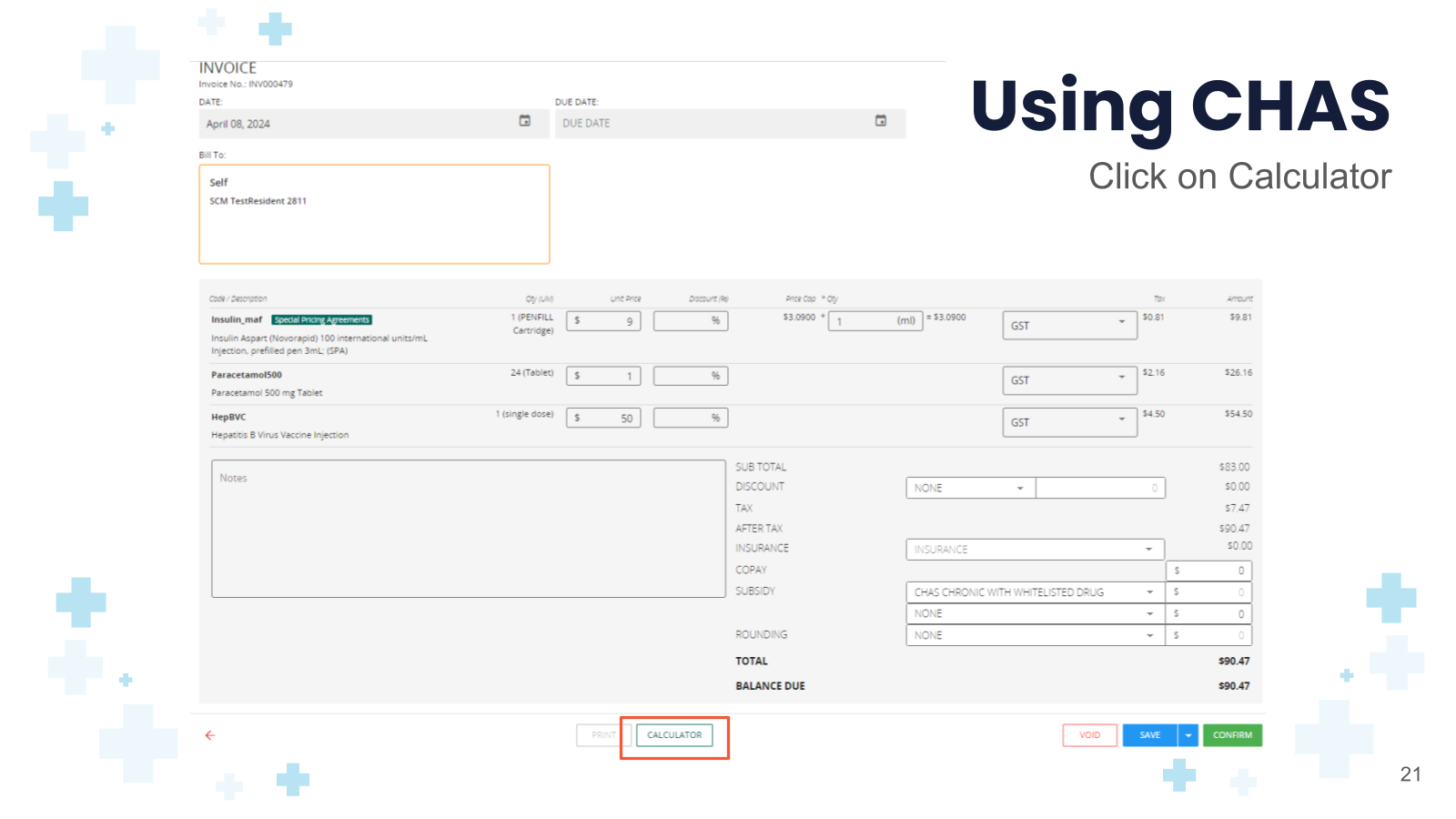
Click on Calculator
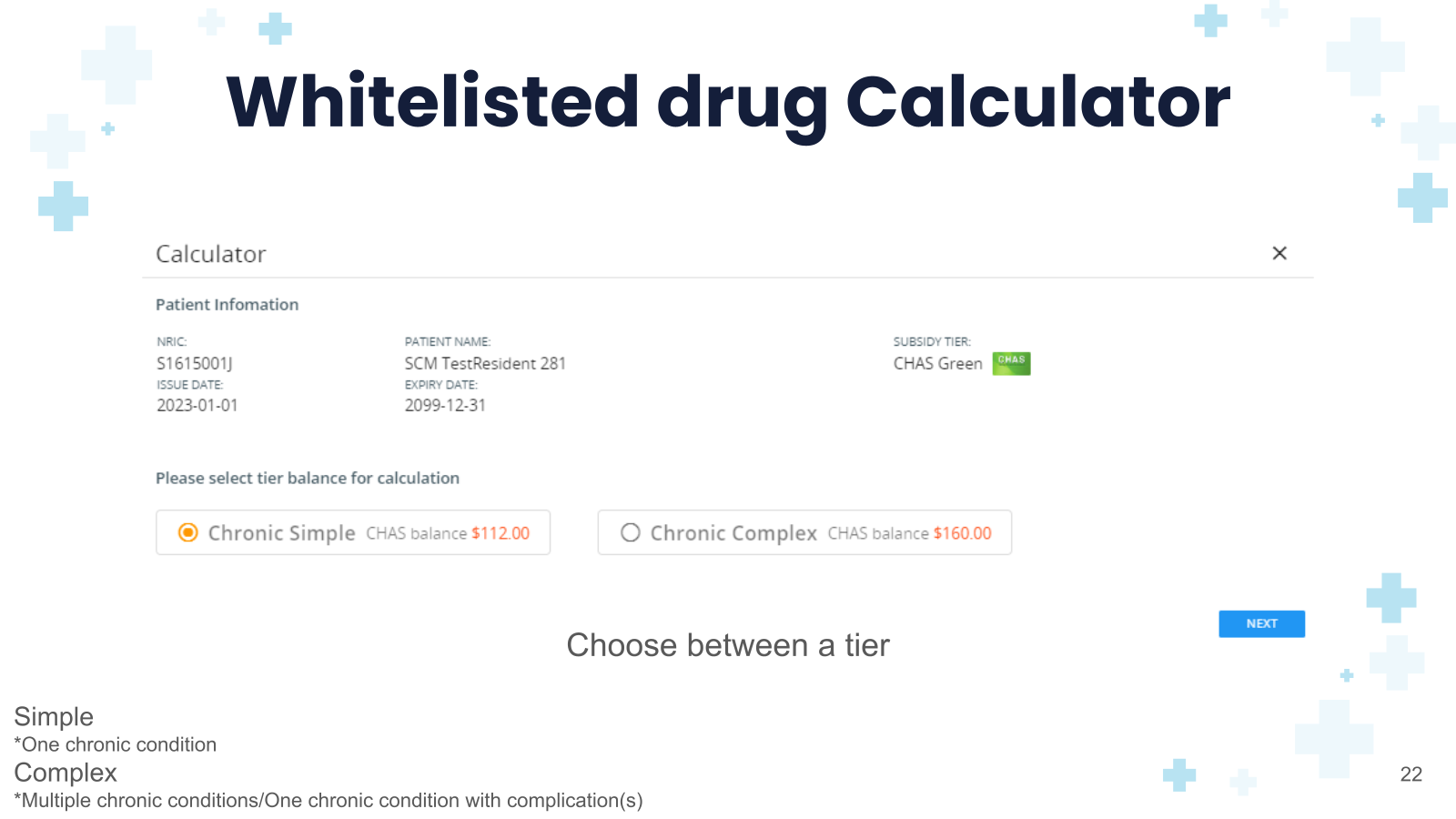
Whitelisted Drug Calculator
Choose between a tier
Simple
*One chronic condition
Complex
*Multiple chronic conditions/One chronic condition with complication(s)
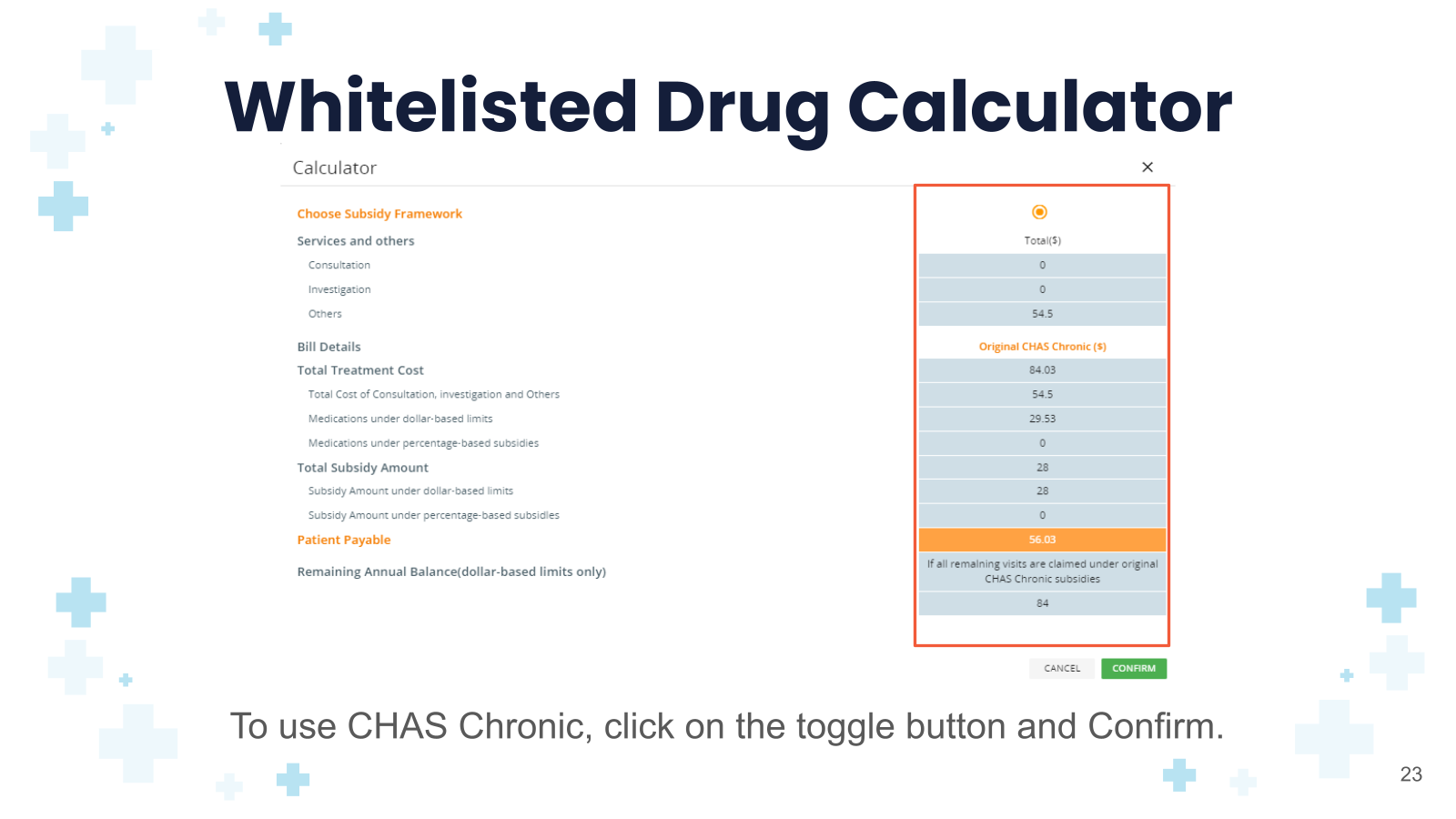
To use CHAS Chronic, click on the toggle button and Confirm.
Using CHAS
Subsidy amount will follow the calculator
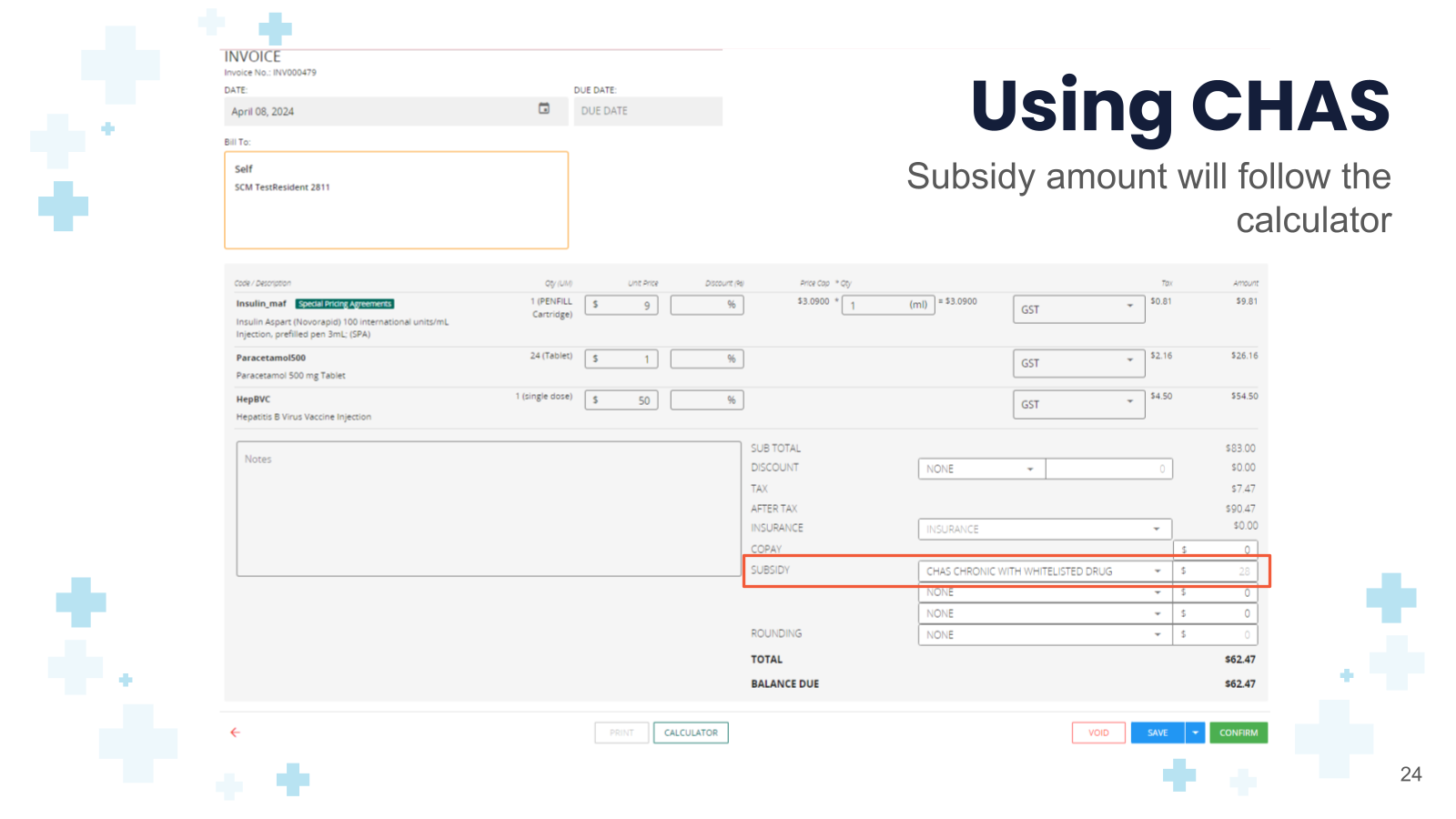
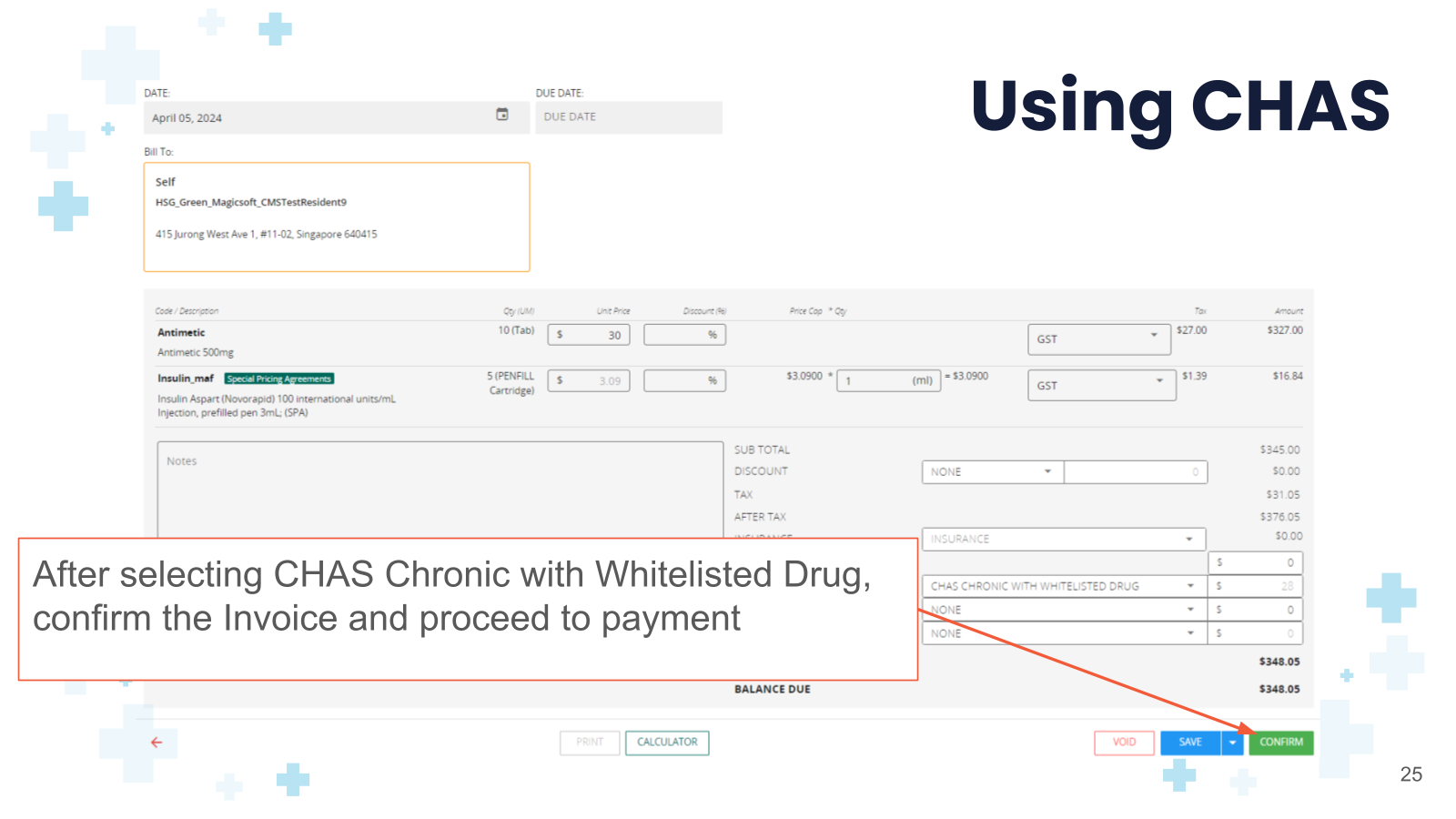
After selecting CHAS Chronic with Whitelisted Drug, confirm the Invoice and proceed to payment
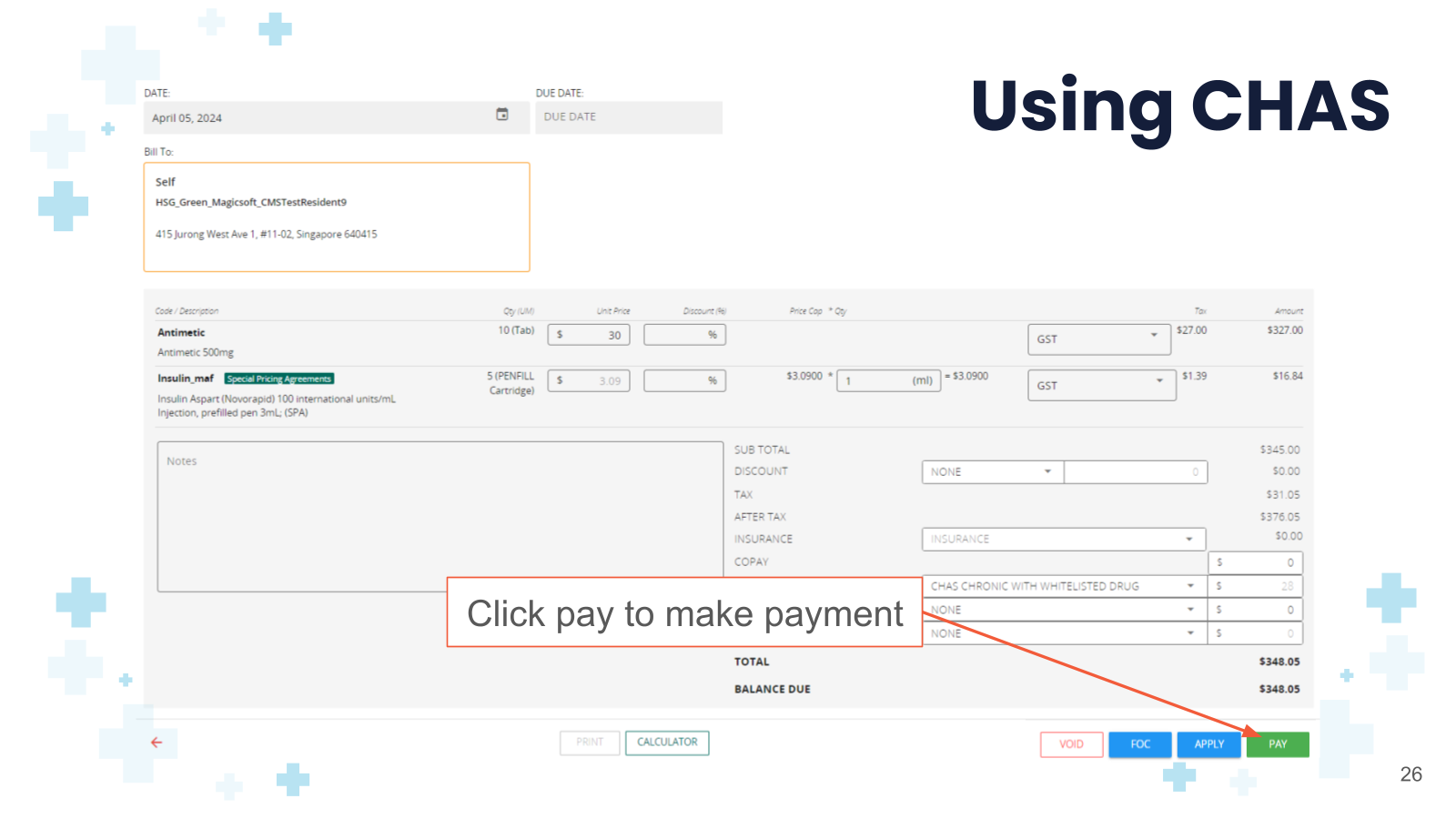
Click pay to make payment
CHAS CHRONIC W/L DRUG SUBMISSION
Submit your CHAS claim through Vanda
Claim Submission
Once invoice has been paid, a draft claim will be generated in Vanda’s Claim Module
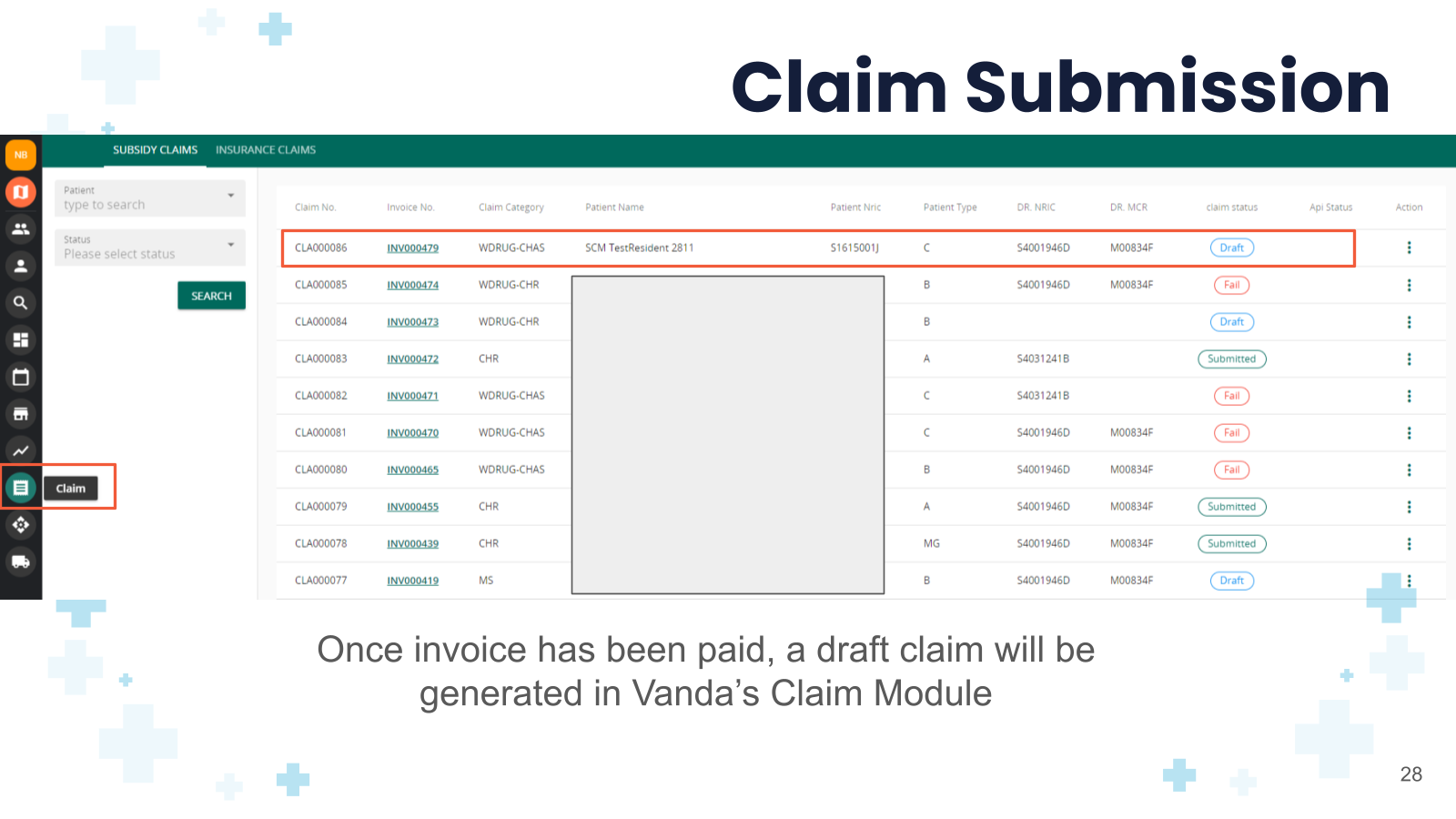
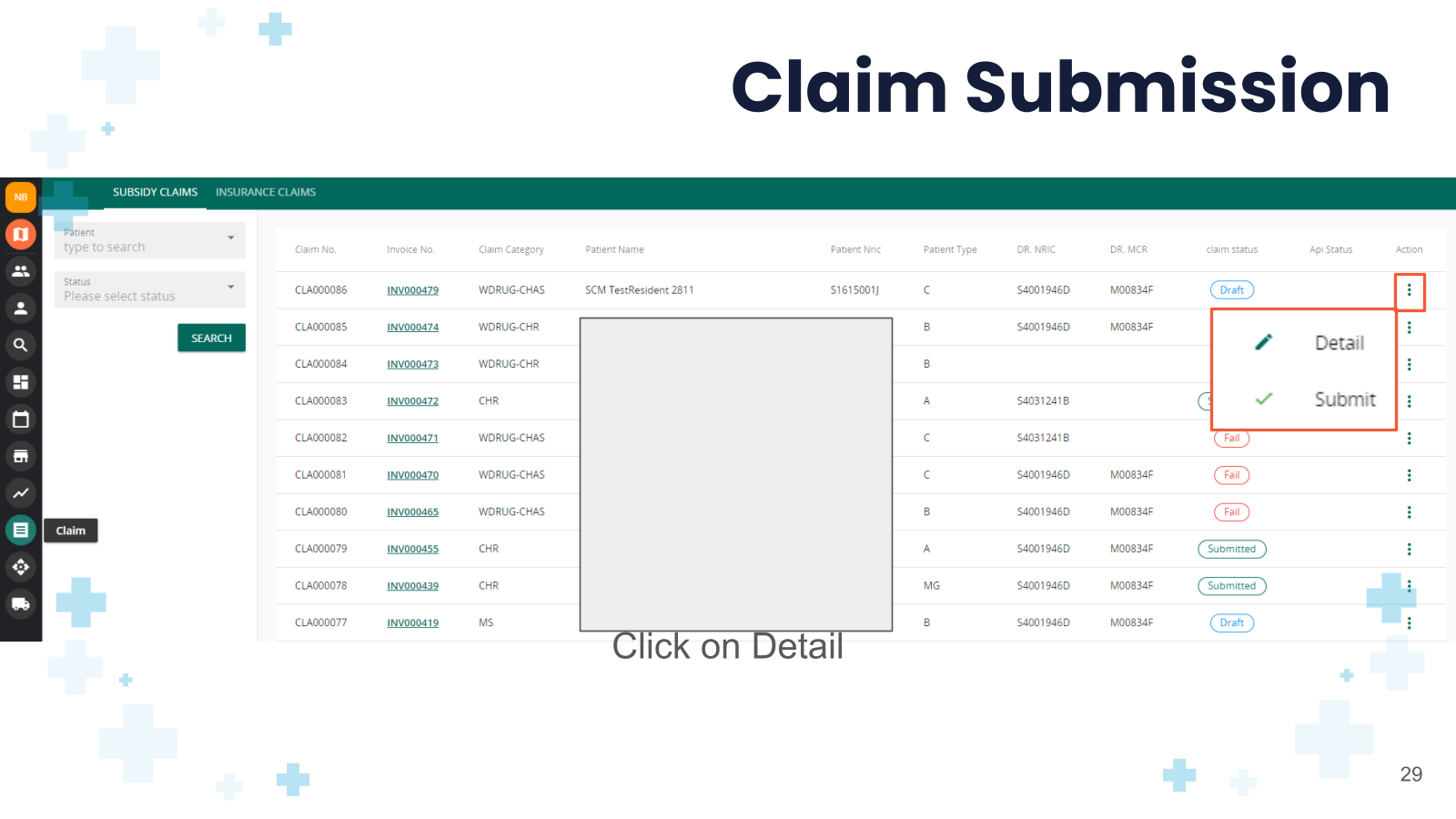
Click on Detail
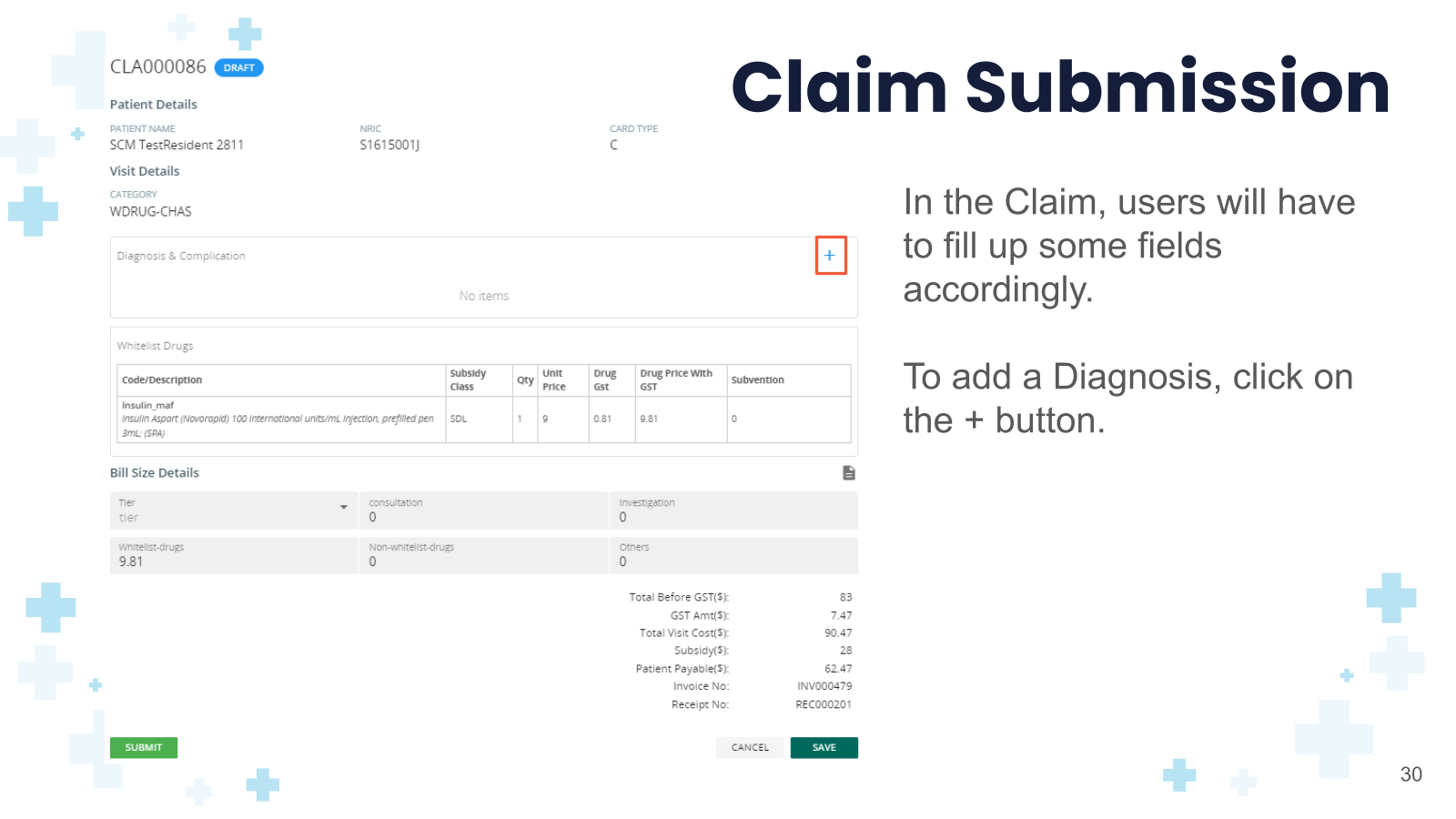
In the Claim, users will have to fill up some fields accordingly.
To add a Diagnosis, click on the + button.
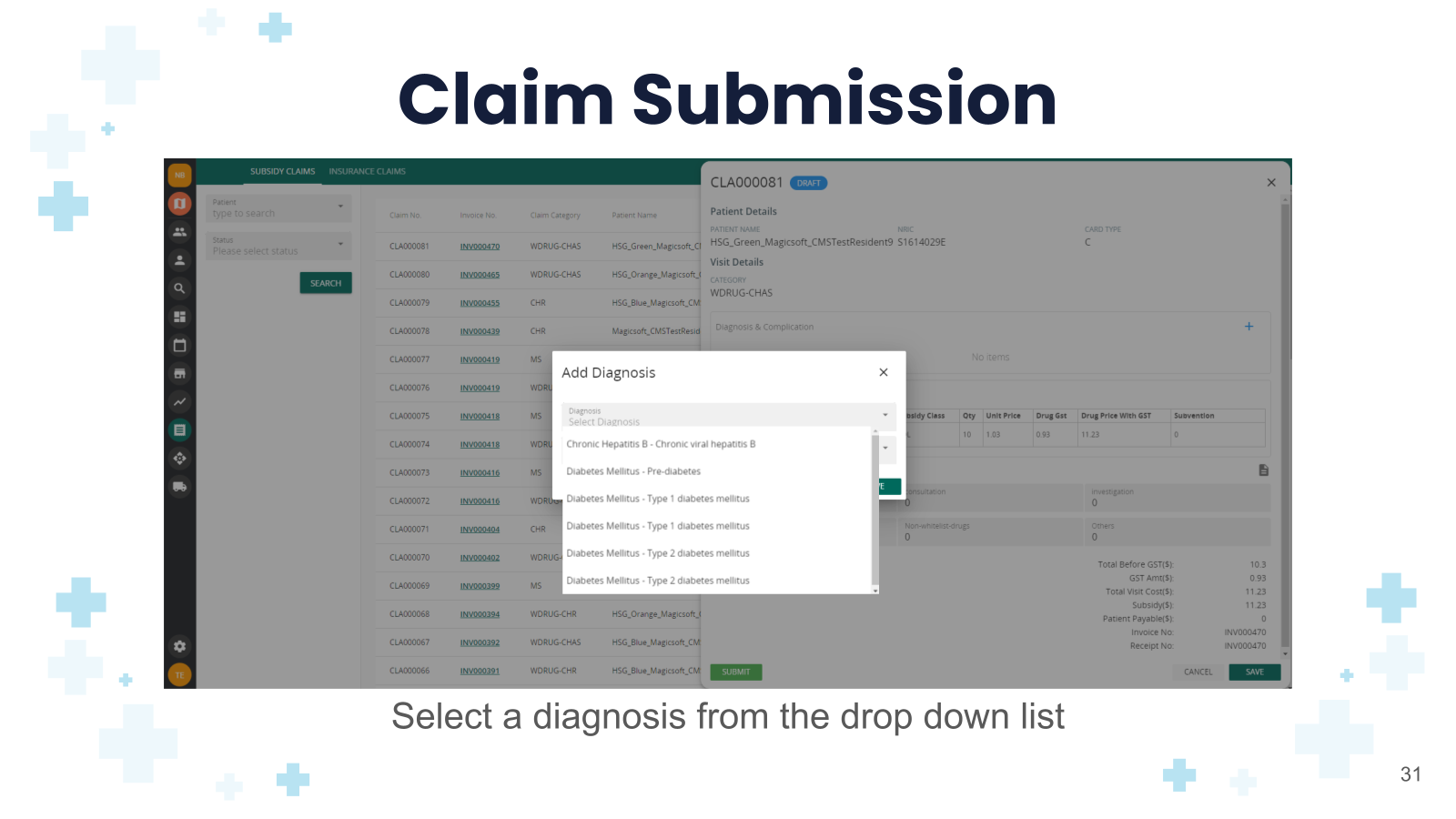
Select a diagnosis from the drop down list
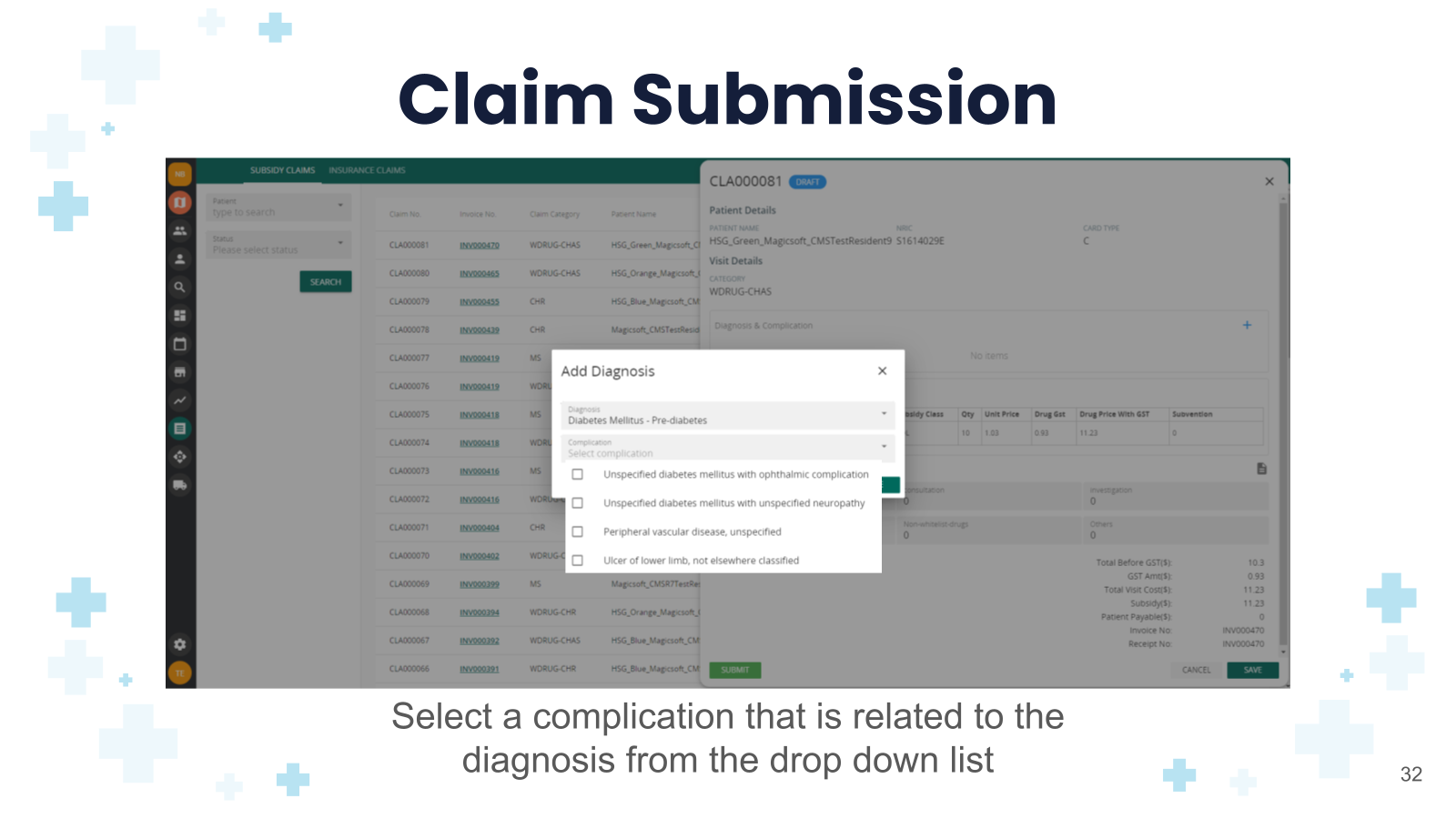
Select a complication that is related to the diagnosis from the drop down list
Click on the paper icon to open up the invoice details
Choose a tier and refer to the Invoice details to fill in the following details.
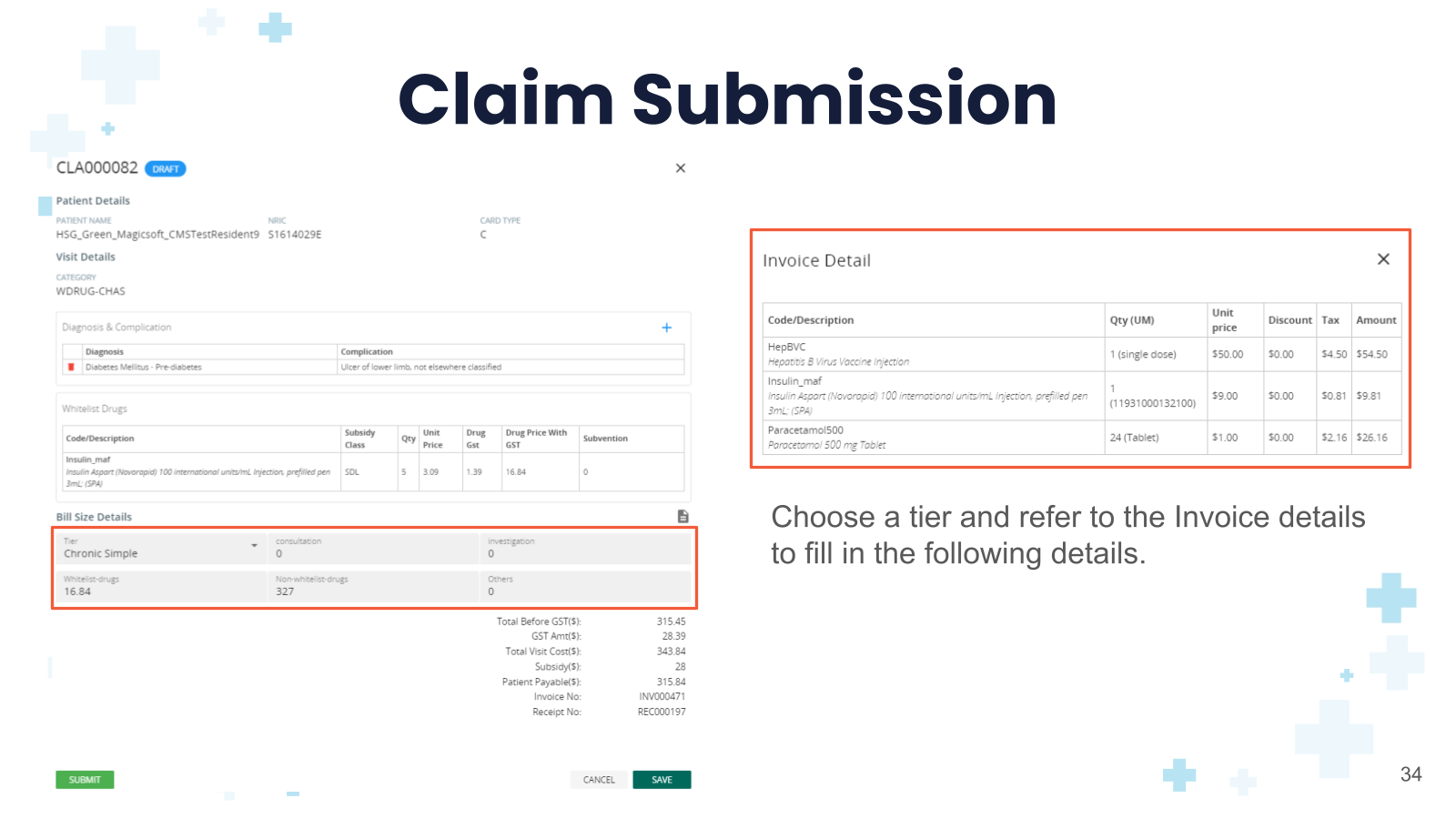
Save and Submit the claim