
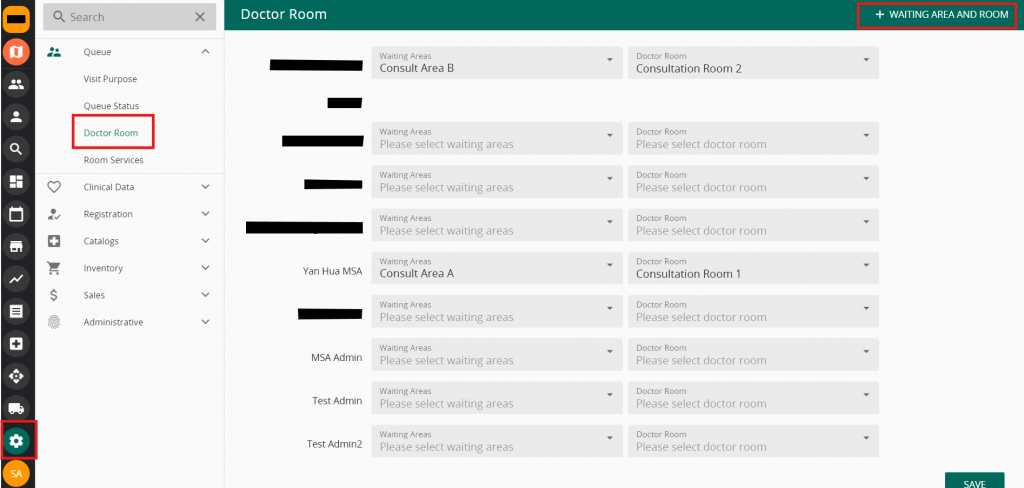
Head to VandaClinic -> Settings -> Doctor Room -> “+ Waiting area and room”
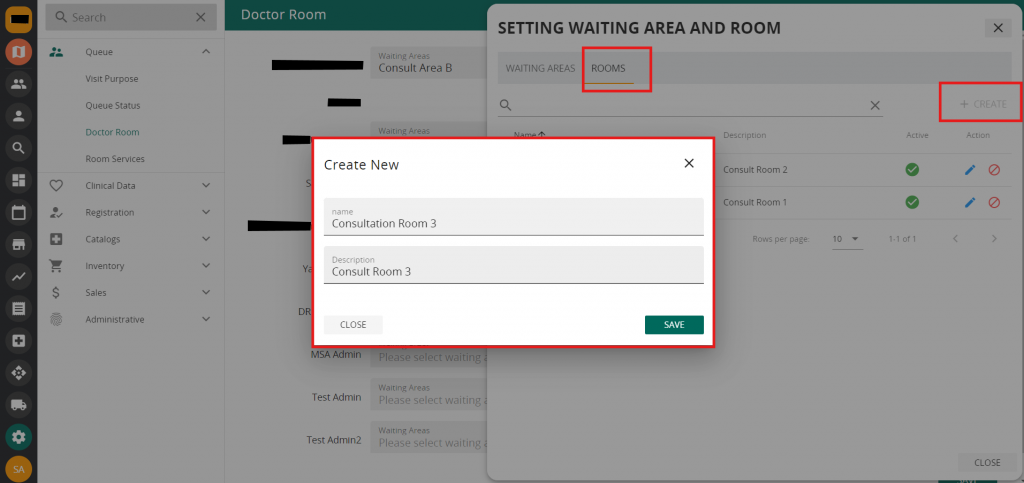
Firstly, we will set up the available doctor rooms. Click on Rooms -> “+ Create” and fill in the room name and description
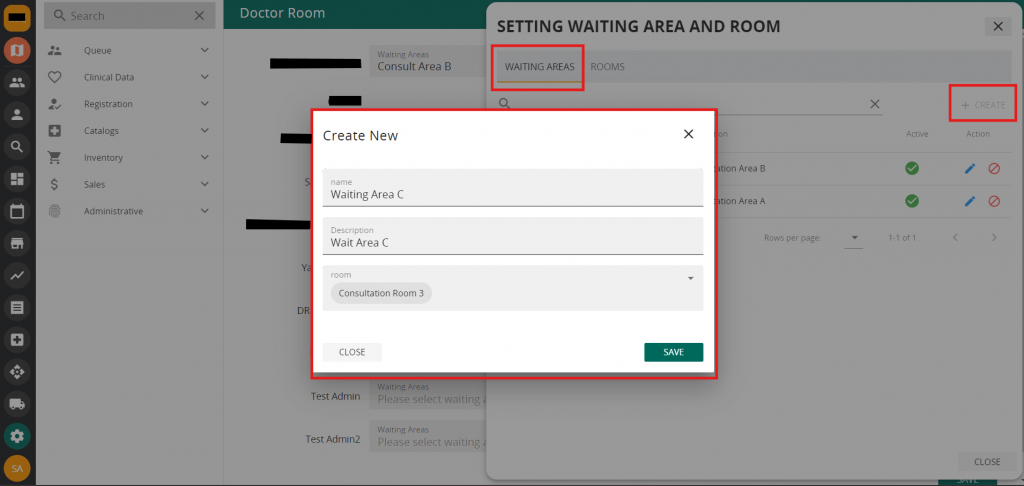
Next, click on “Area” -> ” + Create” and fill in the waiting area name & description. Followed by selecting the room. (If you do not see the rooms that you have just created, simply close the pop ups and do a refresh before trying again)
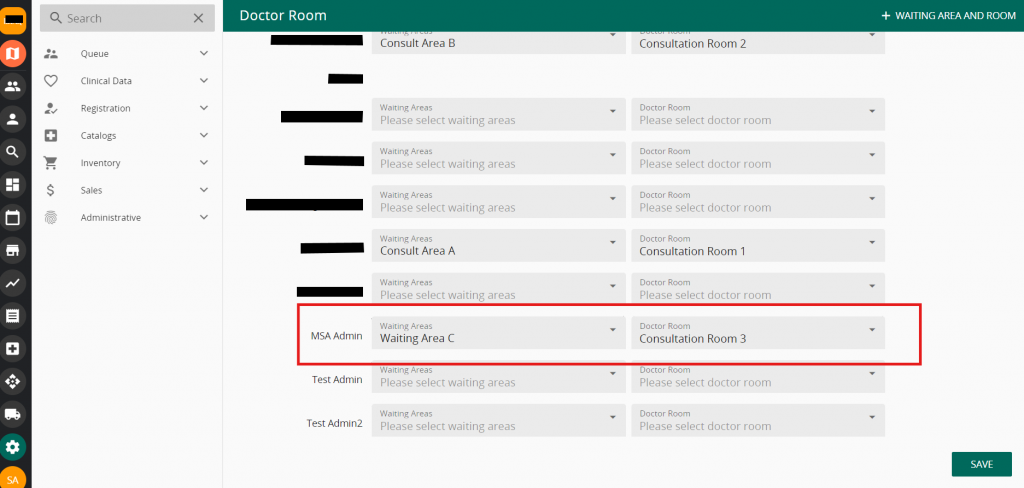
Once this is done, you can assign the room to a doctor type user
Moving on to Services. Click on “Room Services”


